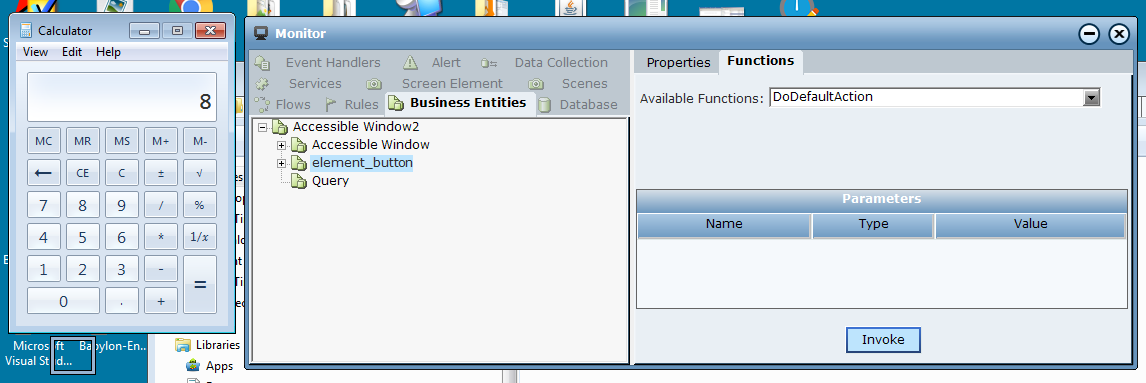
Use Accessibility functions to reference elements that are otherwise difficult to recognize. Accessibility creates a detailed hierarchy of elements below a RootElement, exposing Accessibility properties, which in turn can be used as identification parameters.
Begin by identifying element properties using a tool such as AccExplorer. Then use the Find Element function to locate the Accessible Element in the hierarchy of elements. This function can be found under the Accessible Window object type.
You can then call Accessibility functions with the relevant properties to retrieve the Accessibility Element and perform various actions, such as DoDefaultAction. The DoDefaultAction function performs the default action depending on the element type, such as click for button elements.
To access the different object types and their properties and functions, open the Direct.Accessibility.Library under References > Library References.
The following example describes how to locate the number 8 button in the calculator application and invoke the DoDefaultAction function to return the properties of the element.
| 1. | Use a tool such as AccExplorer 2.0 to locate and identify the screen element properties, such as all properties of the number 8 button in the calculator application. |
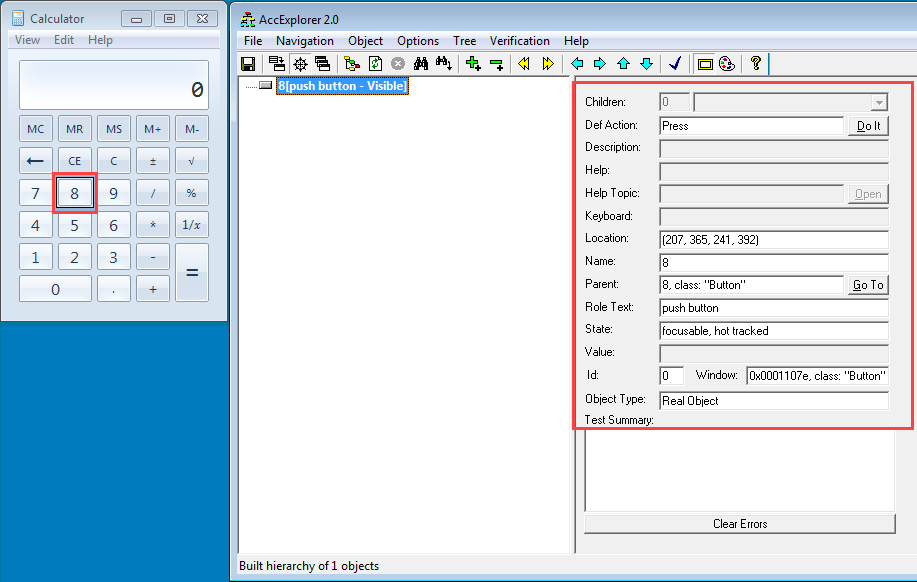
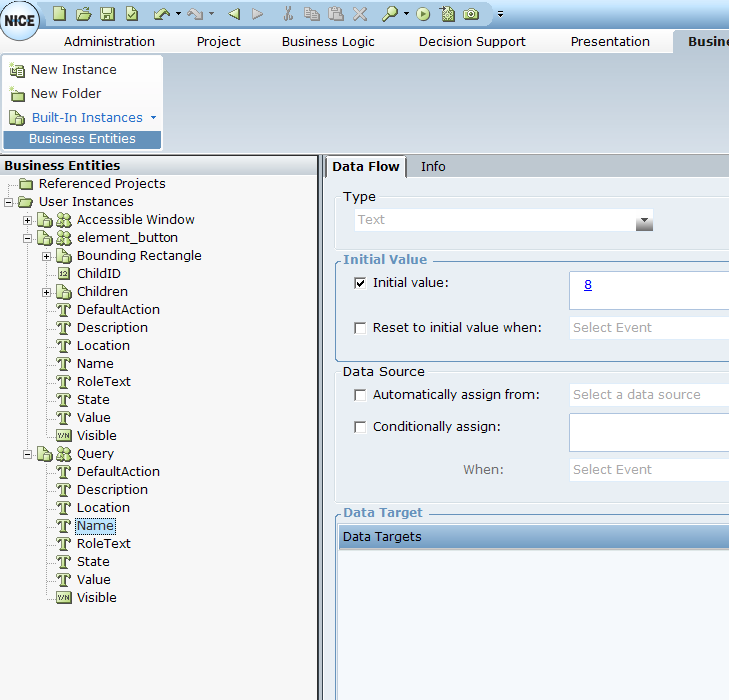
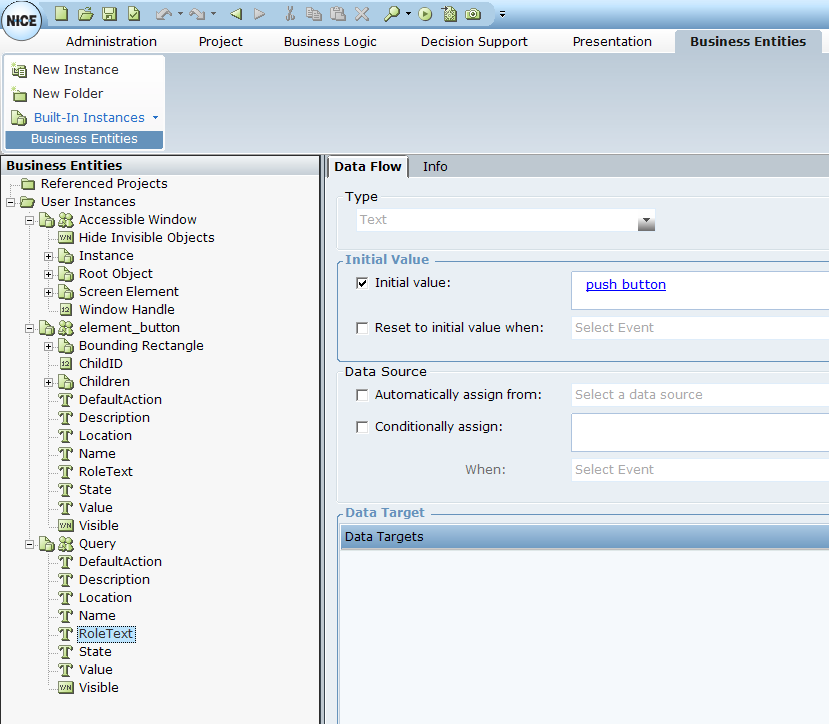
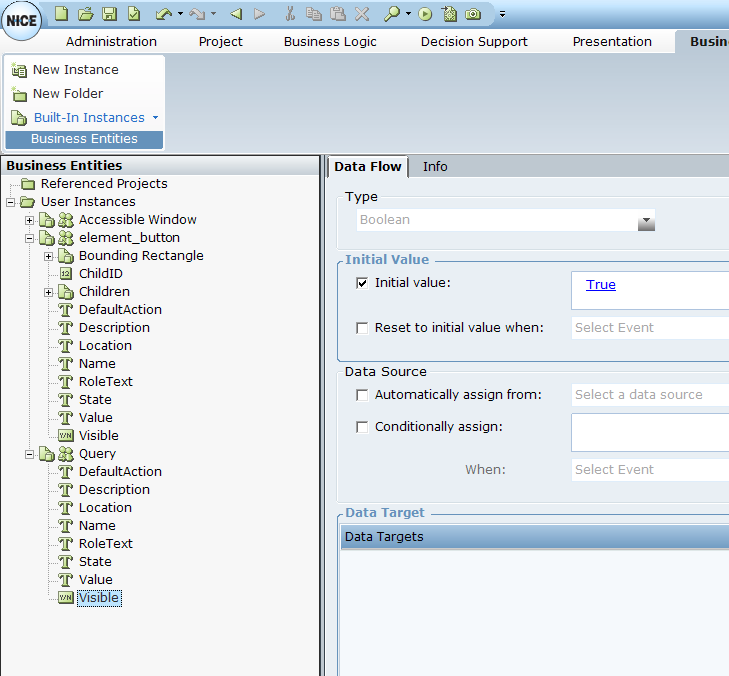
| 2. | Create Business Entities for Accessible Window, the screen element, and Query. In the Query Business Entity, select initial values for Name, Role Text and Visible properties as captured in AccExplorer 2.0. |
Name
Role Text
Visible
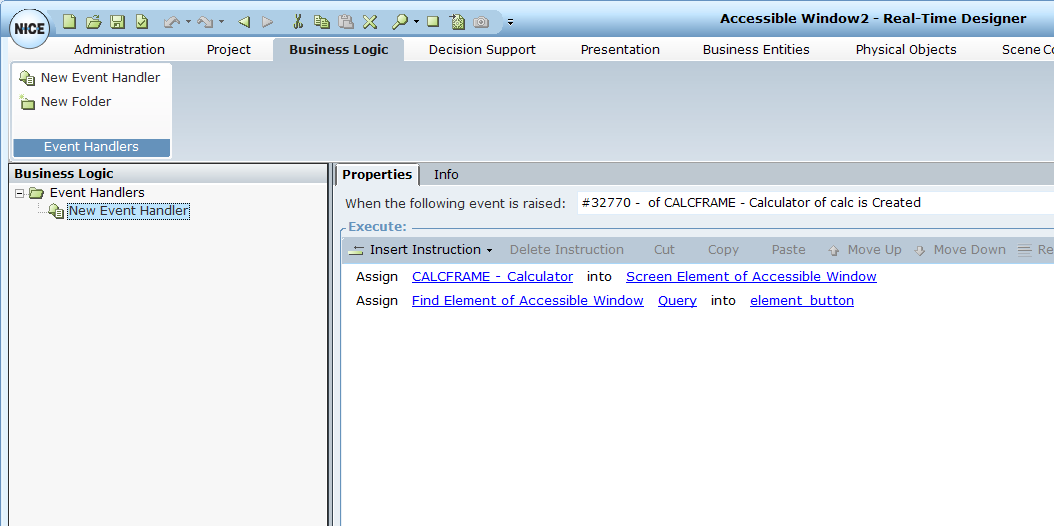
| 3. | Create the Event Handler and assign the calculator application to Screen Element Accessible Window. Assign the Find Element function to the element button using the Query method that includes the element properties. |
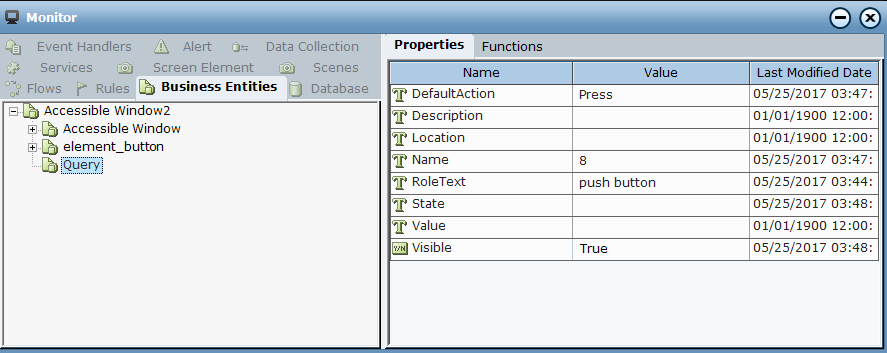
In Monitor, the Properties for the Query Business Entity are displayed with the defined initial values.
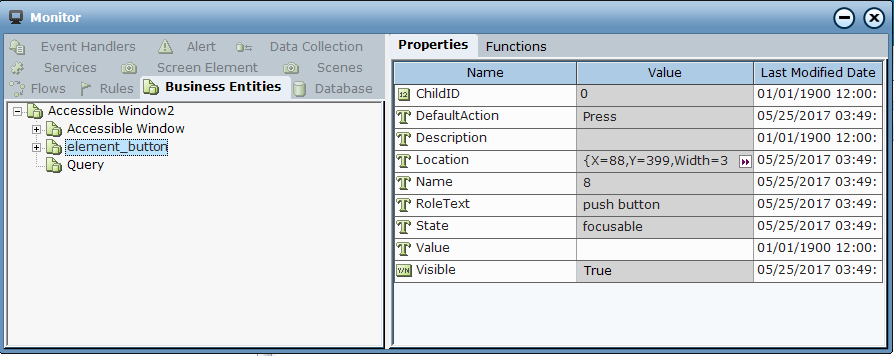
The element_button Business Entity displays the returned properties.
| 4. | Invoking the DoDefaultAction function performs a click the number 8 button in the application. |