

ABBYY Vantage Sample Scenario
In this sample scenario, APA sends fuel receipts to ABBYY Vantage, and use a pre-defined Fuel Skill to extract information from the receipt and return this to APA.
This sample scenario:
Works directly with ABBYY Vantage and there is no need for an RT Server.
You can download the result for a transaction in RT Designer once the file has been processed.
Requires you to enter the ABBYY Vantage user name and password in the RT Designer project.
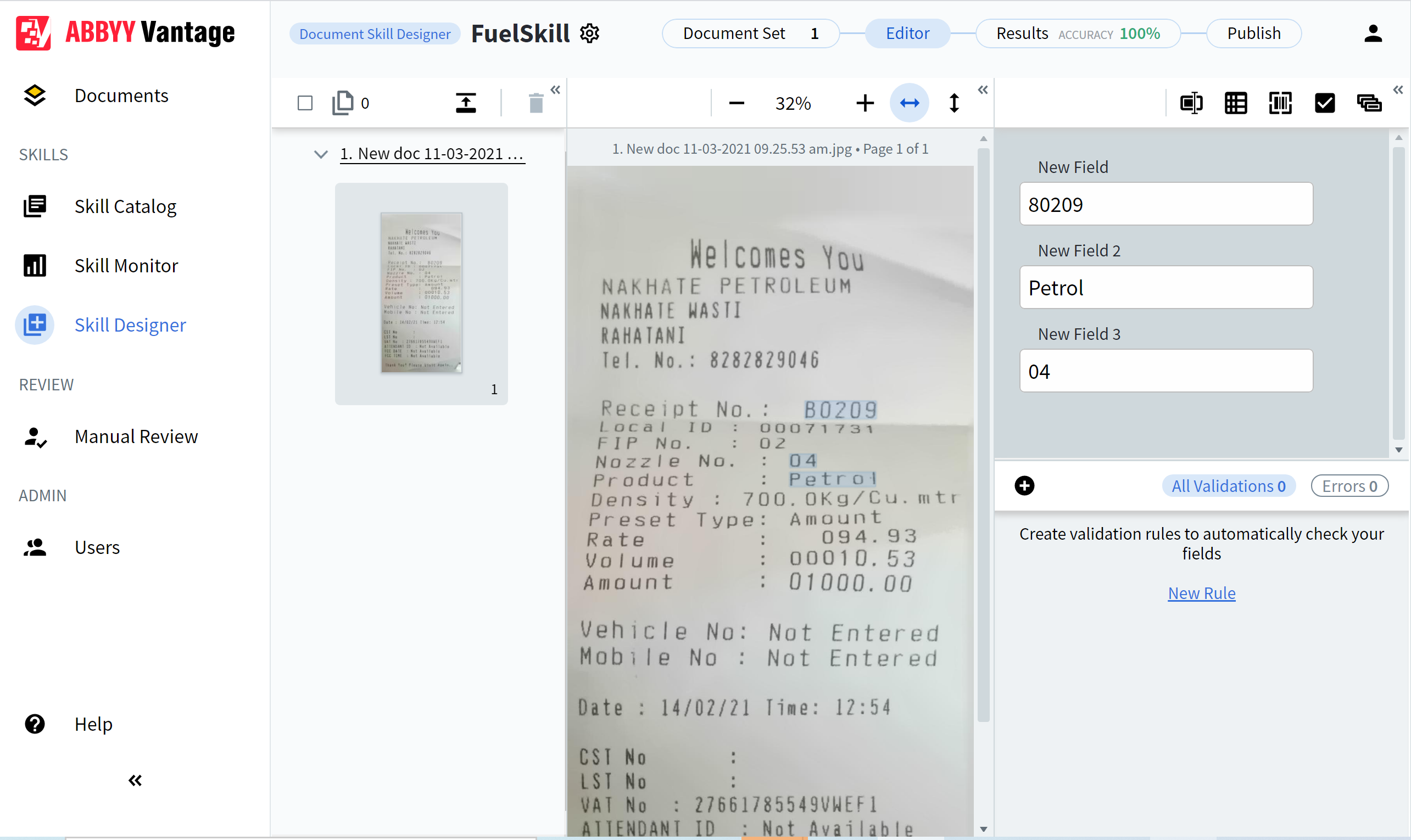
The sample Fuel Skill includes three values:
-
Receipt No
-
Nozzle No
-
Product
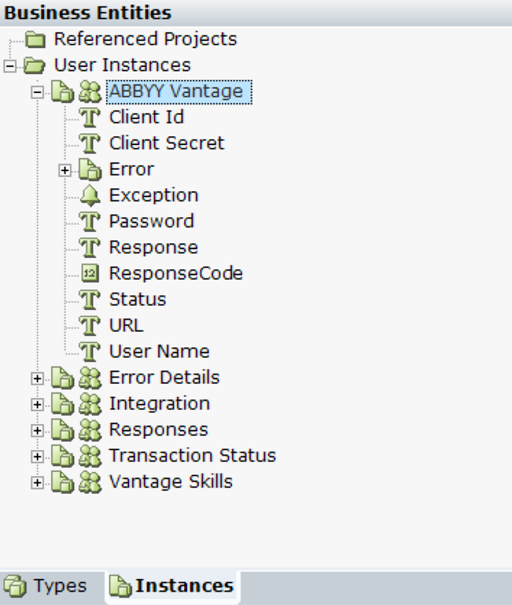
The Real-Time Designer ABBYY Vantage Sample project includes an instance of the ABBY Vantage Business Entity. This points to the ABBYY Vantage, which specifies the credentials, as well as the ABBYY Vantage Client Id and Client Secret.
Download the sample project here.
This sample scenario uses a direct connection to ABBYY Vantage and does not require the use of a Real-Time Server.
First read ABBYY Vantage Library Objects for details on the functions.
| 1. | You must enter the Client Id, Client Secret, User Name and Password in the ABBYY Vantage Business Entity in Real-Time Designer. These are not provided in the sample project for security reasons. For more details, see ABBYY Vantage Library Objects. |
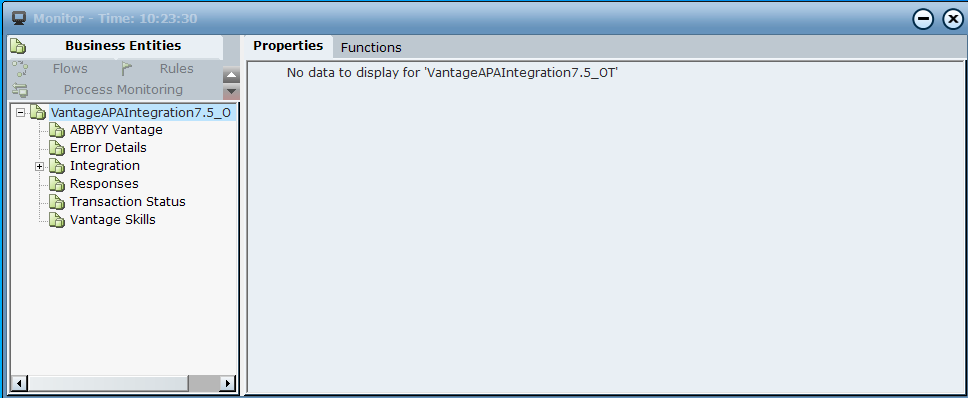
| 2. | Run the project and launch Monitor. |
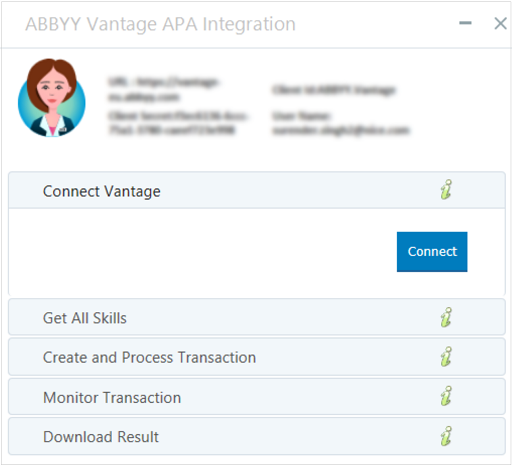
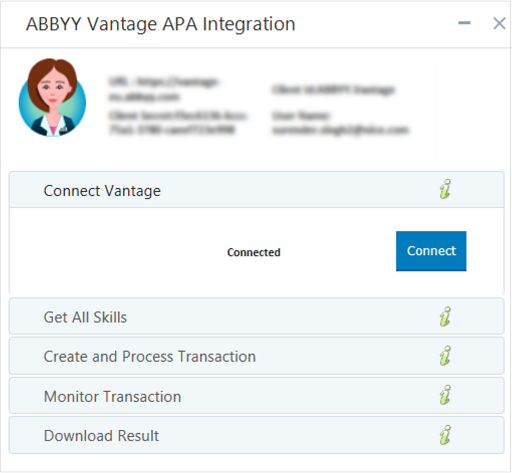
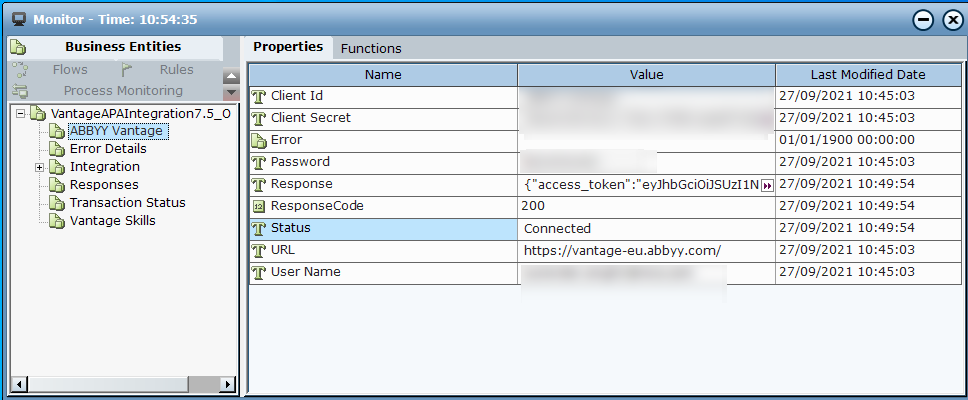
| 3. | Click Connect. The application connects to ABBYY Vantage. The Response field now holds the access token. |
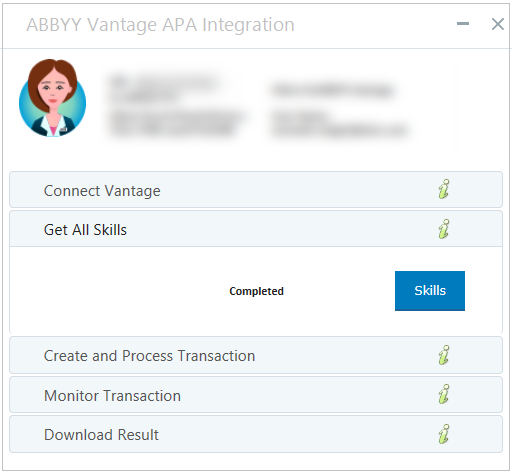
| 4. | Expand Get All Skills and click Skills. The skills are retrieved from ABBYY Vantage and the list of skills is populated. |
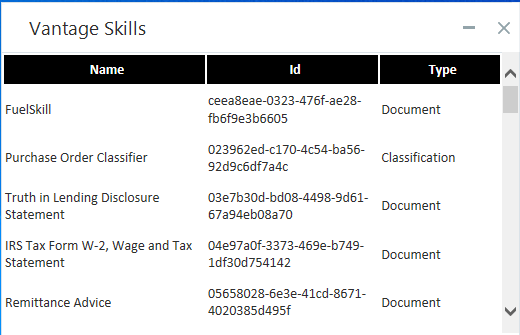
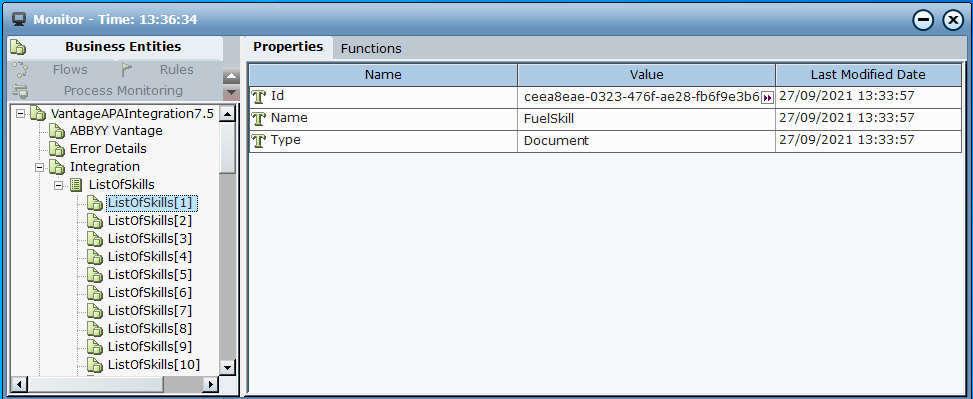
| 5. | Copy the Id for the FuelSkill. |
| 6. | Expand Create and Process Transaction. |
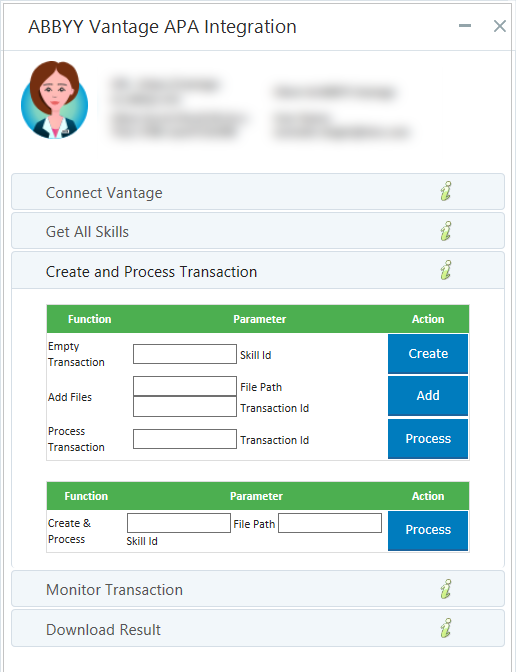
| 7. | To create a transaction, in the Empty Transaction field, paste the skill id, and then click Create. |
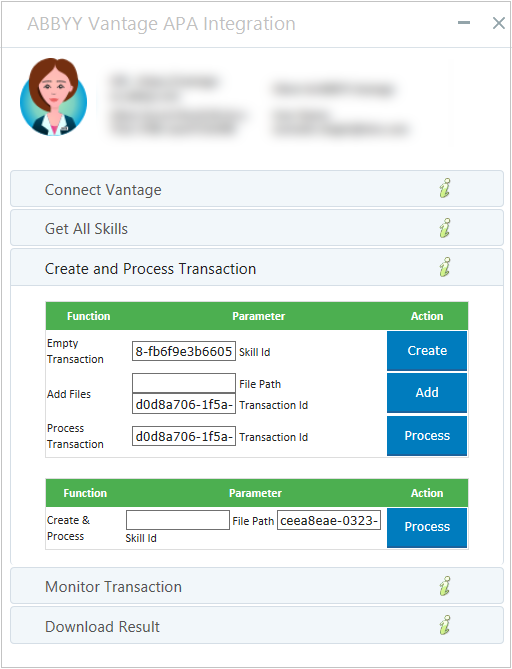
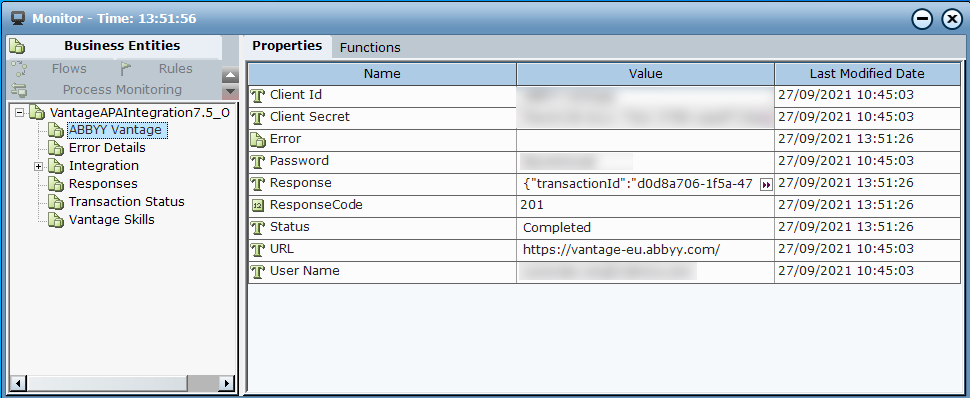
| 8. | To upload a file, in the Add Files field, paste the file path (including the file name), and then click Add. Each transaction processes one file corresponding to one document. |
| 9. | To start the transaction, click Process. A ResponseCode of 200 indicates that the transaction processing was started. |
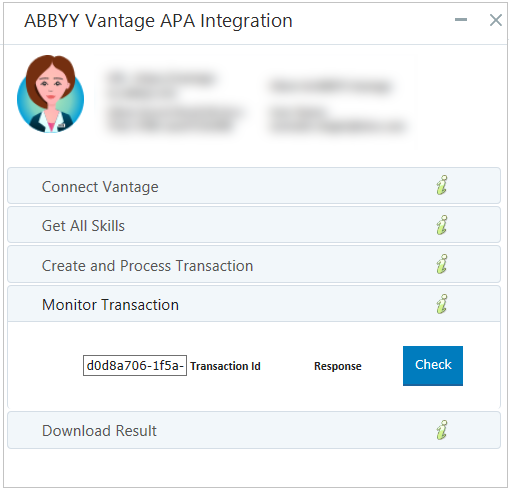
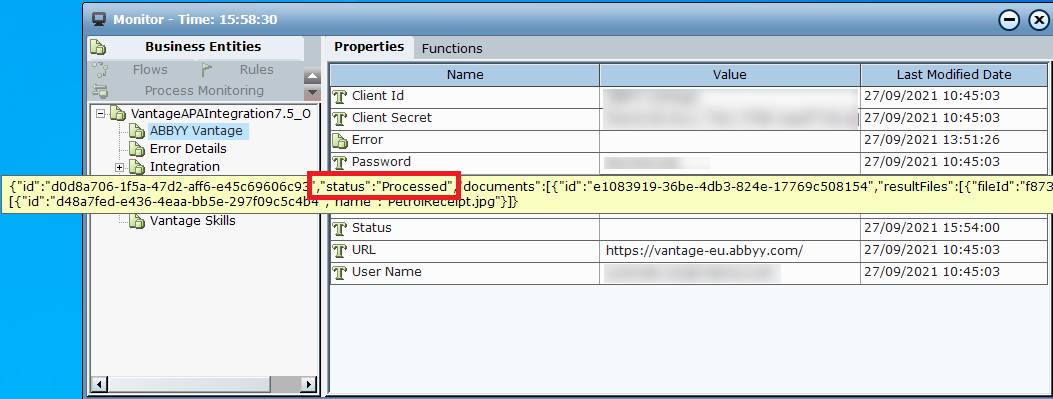
| 10. | To monitor the transaction processing, expand Monitor Transaction and click Check. The Response includes a "status":"Processed" once ABBY Vantage has finished processing the transaction. |

| 11. | To download the result, expand Download Result, copy in the File Id (the Transaction Id is automatically filled in) and click Download For details on the results, see ABBYY Vantage Library Objects. |
