

Callout Size Properties
The following options are available in the Size area of the Propertiespane:
Fit to Content: Automatically resizes the callout to fit its content based on a fixed width, as follows:
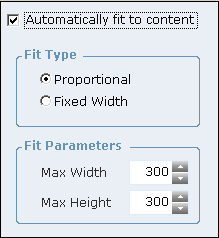
Yes enables you to specify the maximum height and/or width of the callout including its frame (in the Width and Height fields), with all content within the frame. If Automatically fit to content is selected and the content is larger than this area, a scroll bar is provided in the callout, unless you define that it be hidden.

When you select Yes in the Fit to Content field, you must also select one of the following options:
Proportional: When selected, you specify both the maximum width and maximum height of the callout. The callout maintains proportionality, based on the dimensions you specify here.
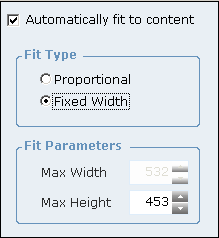
Fixed Width: When selected, you only need to specify the maximum width of the callout. At real time, the callout adjusts to the minimum possible height so that no vertical scroll bar is required, according to the width value defined here.
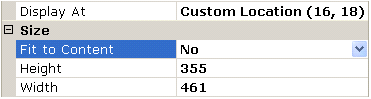
No specifies that the values in the Height and Width fields indicate the exact size of the frame. For example:
You can also change the size of the frame by clicking and dragging one of its handles.
The Fit to Content option does not work on lists.
Dynamically Resizing a Callout
You can dynamically resize a callout so that it automatically adjusts its size according to the size of its content.
The classic case involves dynamic tables that have a constant width, where the number of rows may change and cannot be anticipated during design time. In such cases, you can set the height and/or width properties of the callout based on logic at real time by creating a formula that calculates these values.
The Automatically fit to content option in the Fit to content property does not work well in such cases, because this sizing mechanism uses a defined proportion that may not properly display the callout's content. For example, if you attempt to resize a dynamic table using the Automatically fit to content option, the table may exceed the size of the callout, making the resulting callout too wide or too tall.
To dynamically resize a callout:
| 1. | Make sure that Automatically fit to content is not selected in the Callout Editor Properties pane. |
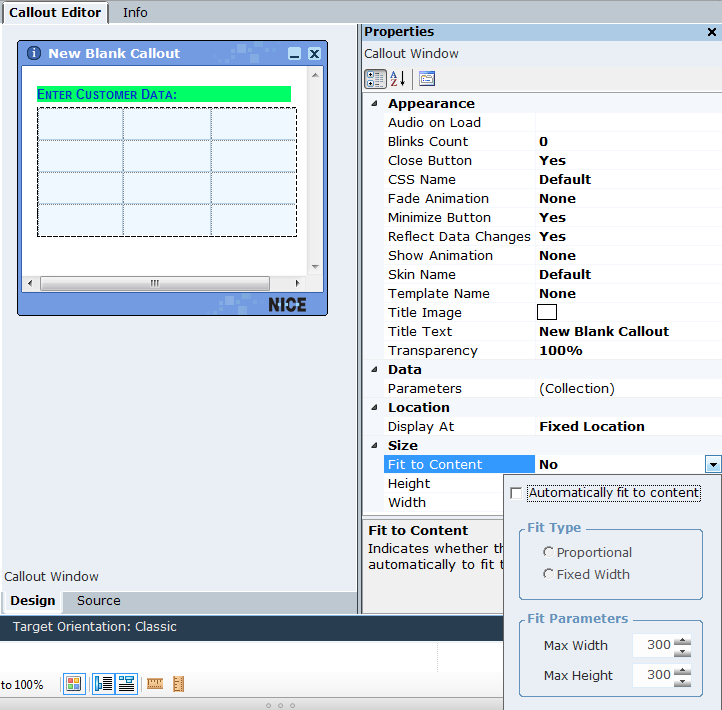
The Automatically fit to content resizing mechanism should not be used with dynamic tables, as it may interfere with dynamic resizing.
| 2. | You can then assign a rule to the callout Height, in which you use a formula that considers the actual number of rows in the table in real time. |
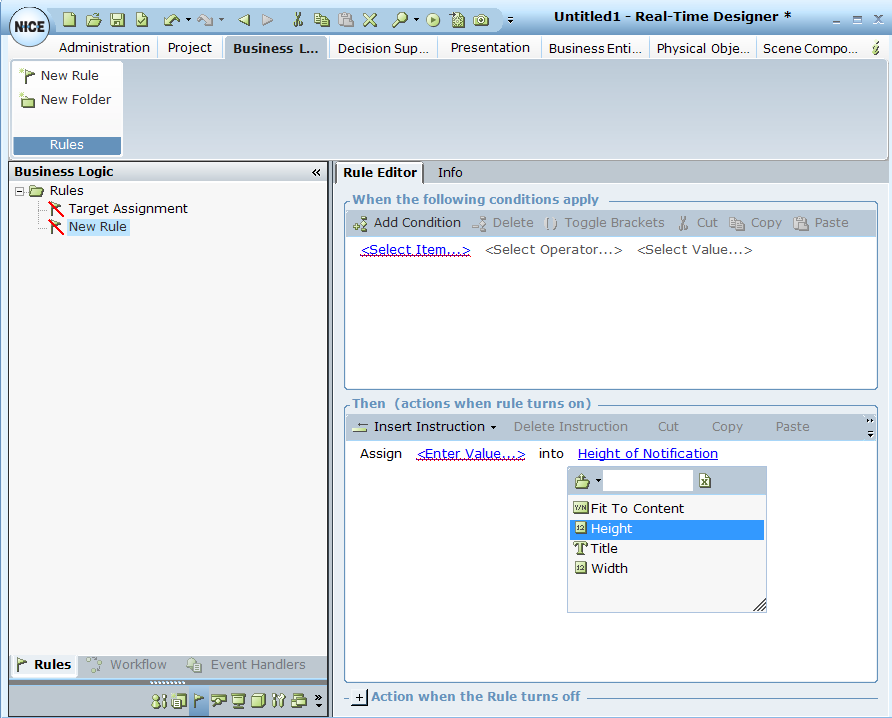
| 3. | For example, if you want the height of each row in the callout to be 15 pixels, you can use the following formula: |
Callout height = (X x 15) + Z
Where:
X = The number of rows in the table.
15 = The number of pixels per row.
This calculation is used to specify the value for the Height property of the callout window.
