

Defining a Launch in Context
The process of defining a launch in context is described below.
To define a new launch in context:
| 1. | Click the |
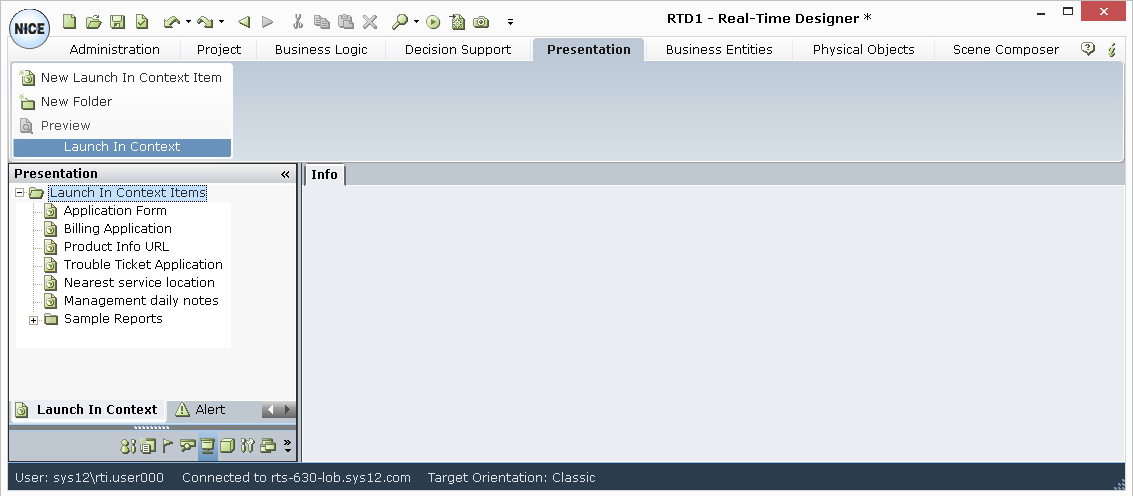
| 2. | ClickNew Launch in Context Item |
ANew Launch in Context branch is added under the Launch in Context Items branch.
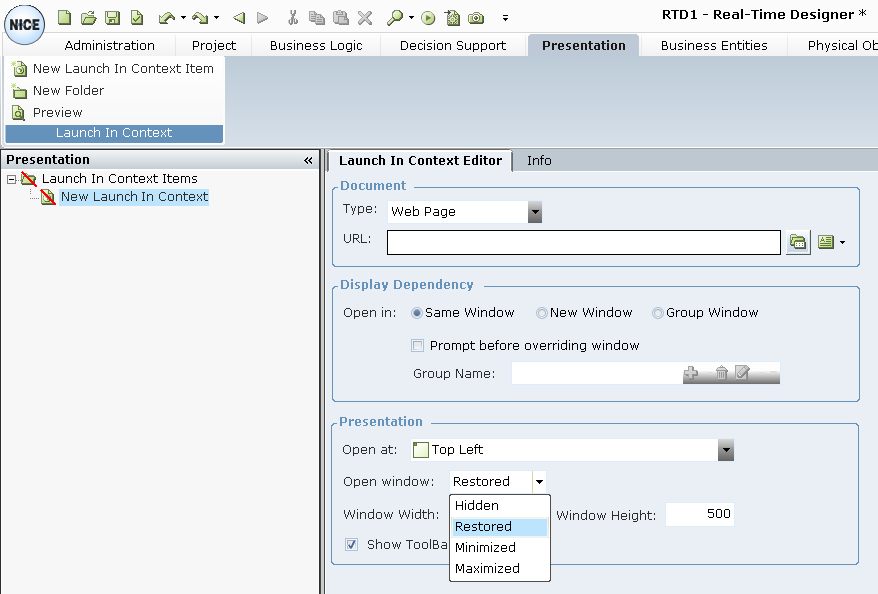
You can rename an item in the tree by selecting it and typing in a new name.
| 3. | In the Type field, select whether this document is a Web Page, Word file, PDF or another type of document. Type Other acts like a Microsoft Windows Start > Run command, which can vary in different operating systems and for some settings. Some applications ignore the Display Dependency and Presentation settings. |
| 4. | The name of the next field may change according to your selection in the Type field. For example, if you select Web Page in the Type field, the name of this field is URL. Select or enter the path to the relevant document. |
You can define dynamic URL addresses or file names in this field by including the names of business entity properties. To do so, click the  tool to the right of the URL field to display an Assignment Tool:
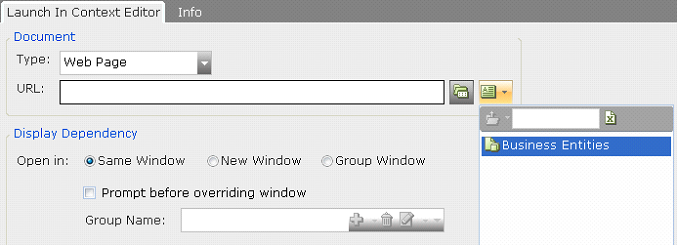
After you select a property, it appears in the URL field. For example:

An example of using this is to include the name of a state (like Colorado) in the URL address that contains prices per state, such as www.OurCarPrices State of Our Customers.com.
| 5. | You can click Preview to display a preview of the selected URL or document. |
| 6. | In the Display Dependency area, specify in which window the document is opened. This feature enables you to control and restrict the windows that are opened by Real-Time Designer on an agent's desktop, as follows: |
Same Window: Opens the document in the same window. For every time the document is opened, it will open in the same window as the previously opened document, replacing the previously opened document.
New Window: Opens the document in a new window.
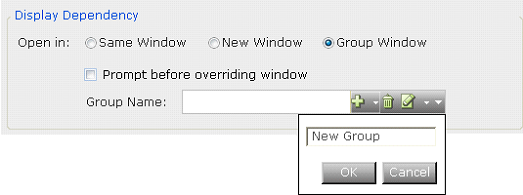
Group Window: This feature enables you to group documents so that this document opens in the same window as the other documents that belong to this group if one of them is currently displayed on the agent's desktop. If no other document in the same group is currently displayed on the agent's desktop, this document is displayed in a new window.
To assign this document to a group, select the group's name from the Group Name field or enter a new group's name by click the  tool to display the following:
If you select the Same Window or the Group Window option, you can select Prompt before overriding window to force an agent to confirm the display of this new information in the same window before it overrides the window's content. For standard documents, this feature is not required because Real-Time Designer knows how to handle the saving of standard documents, such as Microsoft Word documents, before overriding a window's content. However, this feature may be required when the agent is interacting with a shell application, where Real-Time Designer cannot automatically save a window's contents.
| 7. | In the Presentation area, define how the window appears on the agent's screen, as follows: |
In the Open at field, select one of the options to specify in which position on their screen this window is displayed, such as top left. The red dot in each icon indicates where the window will be positioned on their screen:

In the Open window field, specify the state in which to open the application. The following options are available:
Hidden: Opens the application behind the active window.
Restored: Opens the new instance of an application in the same size as other open instances of that application.
Minimized: Opens the application in minimized form.
Maximized: Opens the application in full-screen size.
Specify the Window Width and Window Height, in pixels.
Show Toolbar Menus: Specifies whether the toolbars and menus of standard applications, such as an Internet Explorer browser or a Microsoft Word window, are displayed when this document is displayed.
