


Project Auto-Recovery
To set auto-recovery settings:
| 1. | Click the Quick Access icon  on the top left of the screen and in the general Advanced Process Automation options, click Settings to display the following window. on the top left of the screen and in the general Advanced Process Automation options, click Settings to display the following window. |
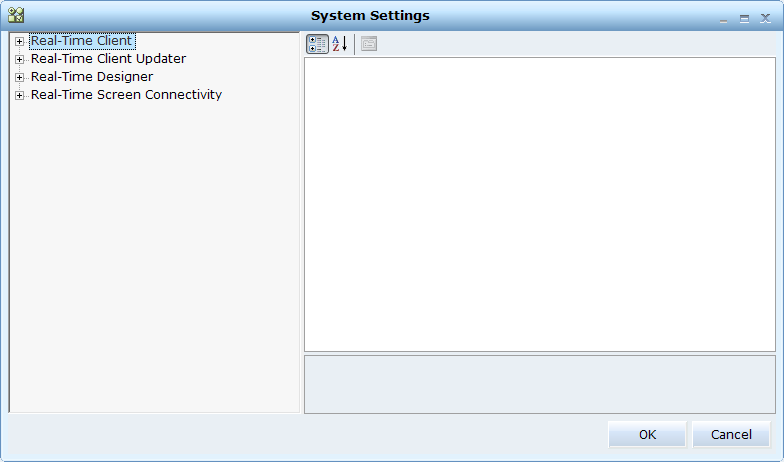
| 2. | Click the Real-Time Designer branch and then click the Project Saving branch. |
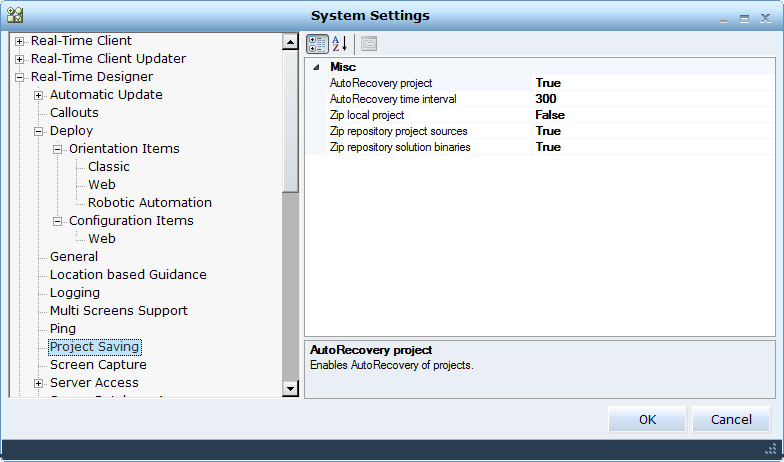
| 3. | Set the following properties: |
AutoRecovery project: Enables you to recover projects automatically. The default setting is True, which means that your project will be saved automatically.
AutoRecovery time interval: Specifies how often the project is saved automatically. The default setting is 300 seconds (5 minutes).
| 4. | Click OK to save your changes. |
If Auto-Recovery is enabled, Real-Time Designer saves your project according to the time interval you set here, and displays the Last AutoRecovery time in the status bar.