


Configuring the Logging Settings
You can set the logging levels in Real-Time Designer or in the related configuration files.
You can set the logging levels to one of the following:
Off: No log data at all.
System: Only system messages
Fatal: Errors that are crucial.
Error: Only errors appear in the log.
Warning: Warnings and errors appear in the log.
Info: Info messages (start, end, value changed)
Debug: Errors, warnings and all steps that were performed.
All: Errors, warnings, and all steps that were performed, including extremely detailed messages.
You can also configure the:
File Name Format: The location (path) of the log file.
Maximum File Size: The maximum file size per log file. By default, there are 10 files of 10 MB each for a total maximum size of 100 MB. When the maximum size is reached, the oldest log is deleted and a new one is created, so that at any point of time the latest 100 MB of logs are available.
Max Size Roll Backups: The maximum number of log files. The default setting is 10.
To configure the logging settings:
| 1. | To set the logging levels in Real-Time Designer, select NICE > Settings. |
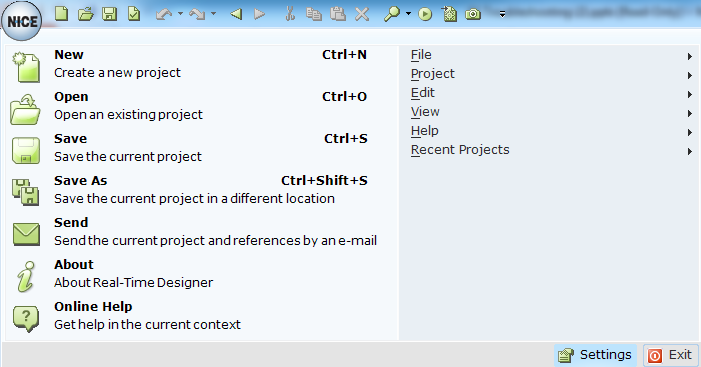
| 2. | Expand Real-Time Designer and select Logging. |
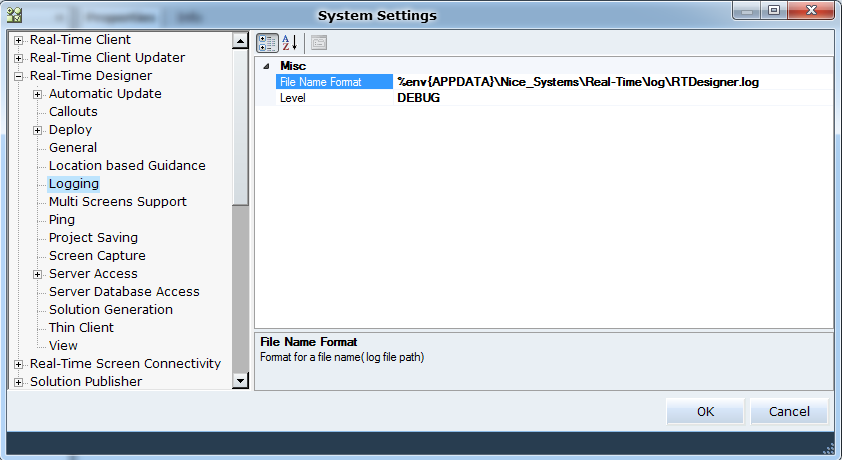
| 3. | From the Level drop-down list, select the required logging level. |
| 4. | To change the log path, in the File Name Formatfield, enter the location (path) of the log files. |
| 5. | Click OK. |
| 6. | Expand Real-Time Client and select Logging > Loggers. |
| 7. | To edit the logger level, select the required logger, for example, System. |
| 8. | Select the required level from the Level drop-down list. |
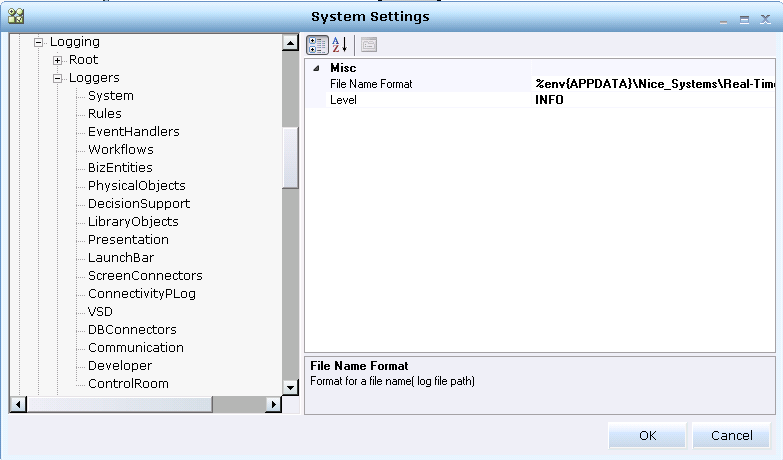
| 9. | To change the other settings, select Logging > Appender > RollingFileAppender. |
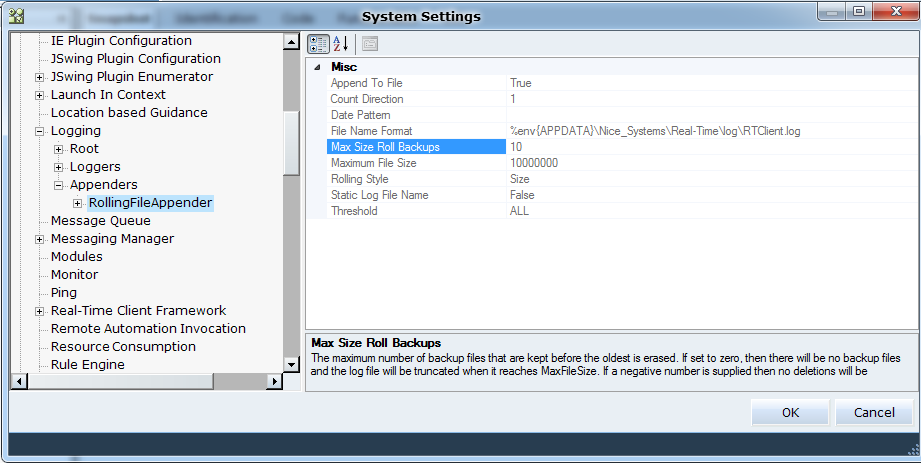
| 10. | In the Maximum File Size field, enter the maximum file size per log file. |
| 11. | In the Max Size Roll Backups field, enter the maximum number of log files. |
| 12. | To change the log path, in the File Name Format field, enter the location (path) of the log files. |
| 13. | To change the log level in the configuration file, navigate to %env{APPDATA}\Nice_Systems\Real-Time. |
| 14. | For Real-Time Designer, open the RTDesigner.exe.config file using a text editor. |
RT Designer
<!-- root logger configuration -->
<root>
<!-- level "OFF" "FATAL" "ERROR" "WARN" "INFO" "DEBUG" "ALL"-->
<level value="INFO" />
<appender-ref ref="RollingFileAppender" />
</root>
| 15. | Change the level value, as required. |
| 16. | To change other settings, search for the appender tag. |
<appender name="RollingFileAppender" type="Direct.Interface.DirectRollingFileAppender">
<fileNameFormat value="%env{APPDATA}\Nice_Systems\Real-Time\log\RTDesigner.log" />
<appendToFile value="true" />
<rollingStyle value="Size" />
<maxSizeRollBackups value="10" />
<maximumFileSize value="10000000" />
<staticLogFileName value="false" />
<countDirection value="1" />
<!-- layout configuration -->
<layout type="log4net.Layout.PatternLayout">
<conversionPattern value="%date [%thread] %-5level %logger - %message%newline" />
</layout>
</appender>
| 17. | To change the file size, edit the MaximumFileSize entry and enter the maximum file size per log file. |
| 18. | To change the number of log files, edit the maxSizeRollBackups entry and enter the maximum number of log files. |
| 19. | To change the log path, edit the fileNameFormat entry and enter the location (path) of the log files. |
| 20. | Save the file. |
| 21. | For Real-Time Client, open the RTClient.exe.config file using a text editor. |
<!-- ROOT LOGGER CONFIGURATION -->
<root>
<appender-ref ref="RollingFileAppender" />
<level value="ALL" />
</root>
<logger name="System">
<level value="ERROR" />
</logger>
<logger name="Rules">
<level value="ERROR" />
</logger>
<logger name="EventHandlers">
<level value="ERROR" />
</logger>
<logger name="Workflows">
<level value="ERROR" />
</logger>
<logger name="BizEntities">
<level value="ERROR" />
</logger>
<logger name="PhysicalObjects">
<level value="ERROR" />
</logger>
<logger name="DecisionSupport">
<level value="ERROR" />
</logger>
<logger name="LibraryObjects">
<level value="ERROR" />
</logger>
<logger name="Presentation">
<level value="ERROR" />
</logger>
<logger name="LaunchBar">
<level value="ERROR" />
</logger>
<logger name="ScreenConnectors">
<level value="ERROR" />
</logger>
<logger name="ConnectivityPLog">
<level value="DEBUG" />
</logger>
<logger name="VSD">
<level value="ERROR" />
</logger>
<logger name="DBConnectors">
<level value="ERROR" />
</logger>
<logger name="Communication">
<level value="ERROR" />
</logger>
<logger name="Developer">
<level value="ERROR" />
</logger>
<logger name="ControlRoom">
<level value="ERROR" />
| 22. | For each logger, change the level value, as required. |
| 23. | To change the other settings, search for the appender tag. |
<appender name="RollingFileAppender" type="Direct.Interface.DirectRollingFileAppender">
<fileNameFormat value="%env{APPDATA}\Nice_Systems\Real-Time\log\RTClient.log" />
<appendToFile value="True" />
<rollingStyle value="Size" />
<maxSizeRollBackups value="10" />
<maximumFileSize value="10000000" />
<staticLogFileName value="False" />
<countDirection value="1" />
<threshold value="ALL" />
<datePattern value="" />
<!-- LAYOUT CONFIGURATION -->
<layout type="log4net.Layout.PatternLayout">
<conversionPattern value="%date [%thread] %-5level %logger - %message%newline" />
</layout>
</appender>
| 24. | To change the file size, edit the MaximumFileSize entry and enter the maximum file size per log file. |
| 25. | To change the number of log files, edit the maxSizeRollBackups entry and enter the maximum number of log files. |
| 26. | To change the log path, edit the fileNameFormat entry and enter the location (path) of the log files. |
| 27. | Save the file. |