


Activating the Connectivity Watcher
After you have configured the Connectivity Watcher properties and set alerts, you can enable Connectivity Watcher on your different projects.
To activate the Connectivity Watcher:
| 1. | In the Administration tab, in the Administration tree, expand Solutions Assignment and select the relevant team. |
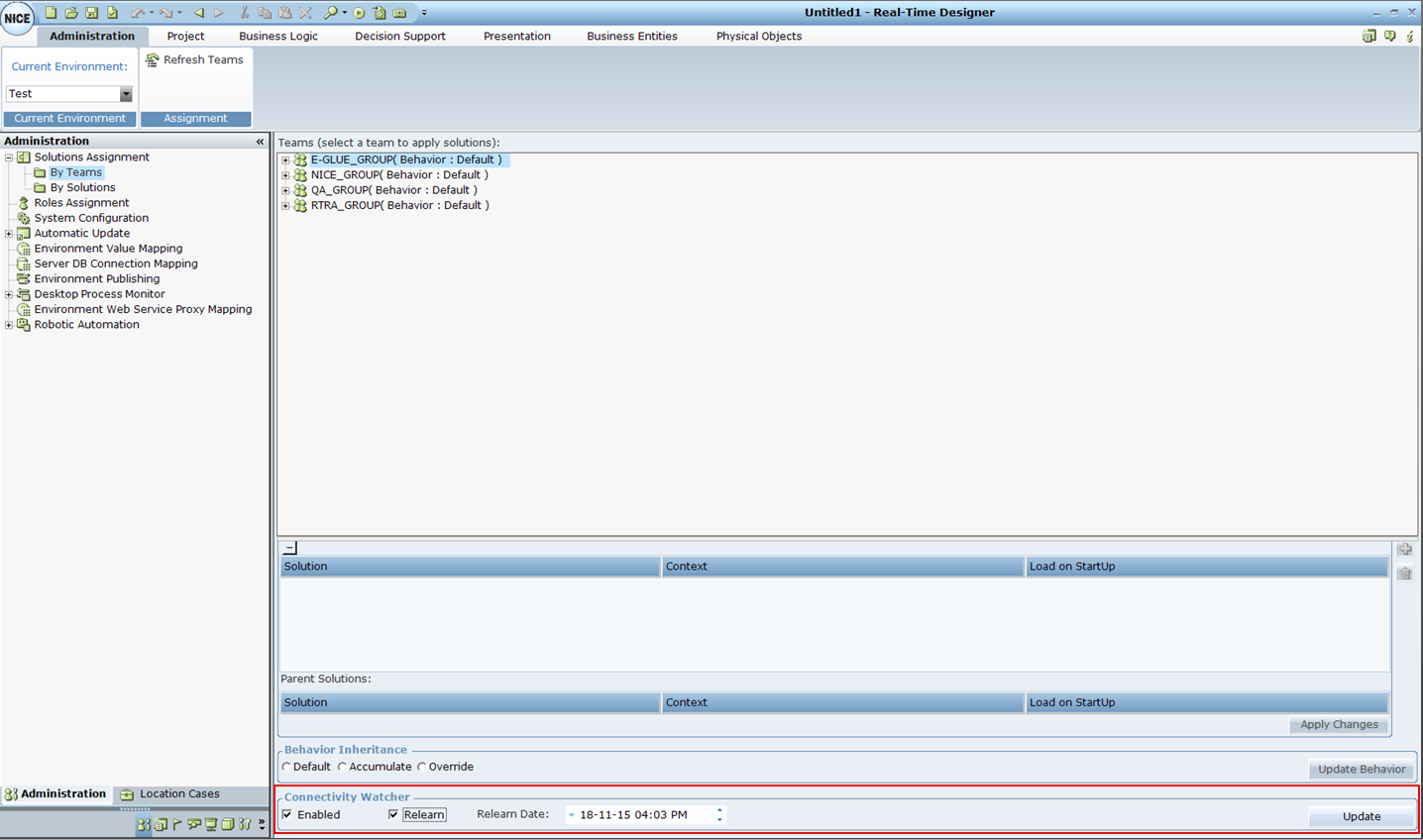
| 2. | In the Connectivity Watcher area, select Enabled to activate the Connectivity Watcher for the selected team and all solutions assigned to it. |
The Connectivity Watcher begins to learn the screen solutions and to compile data. When the learning phase is complete, the Connectivity Watcher begins to track connectivity.
| 3. | Select Relearn to activate the learning mode of the Connectivity Watcher, even if it has already begun to work in Run-Time mode. Then define the Relearn Date. |
Selecting Relearn and setting the Relearn Date directs the Connectivity Watcher to ignore previously gathered data and begin the learning mode from scratch.
Each Real-Time client that belongs to the team compares the Relearn Date to the last time the Connectivity Watcher activated the learning mode, and begins the Relearn phase if the Relearn Date is newer.
It is not necessary to select Relearn for every project published. Only select Relearn if changes were made to the identification properties of the existing screen elements, rendering previously gathered statistics irrelevant.
| 4. | Click Update. |
The Connectivity Watcher is activated.