


When you capture a WPF Chromium Control screen element, a hierarchy is automatically created in Real-Time Designer.
To capture a Chromium screen element:
| 1. | Run the WPF application with a Chromium screen element. |
| 2. | Capture a pane with web page within the application. For more information, see Capturing a Screen Element. |
| 3. | In Real-Time Designer, navigate to the Physical Objects tab. Expand the |
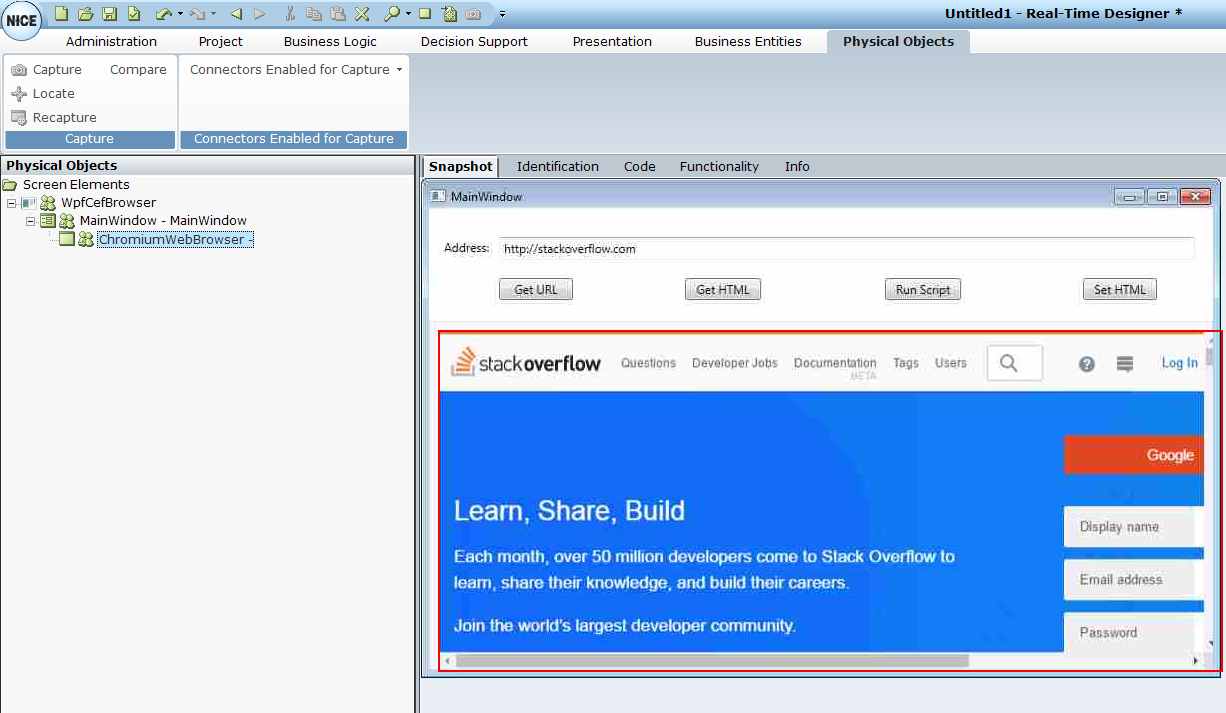
In the Snapshot tab, the captured screen element is framed in red.
| 4. | Right-click the root control and select Show Hidden Captures. |