


Best Practices to Control HTML Elements
Now let’s have a look at a few examples to control the HTML elements by running scripts in the Console Tool.
Set HTML Element Content
Set Text Box Content using JavaScript
There are several JavaScript methods to access HTML DOM elements.
|
Method |
Description |
|---|---|
|
document.getElementById(id) |
Find an element by element id |
|
document.getElementsByTagName(name) |
Find elements by tag name |
|
document.getElementsByClassName(name) |
Find elements by class name |
To set the text box element content using JavaScript:
-
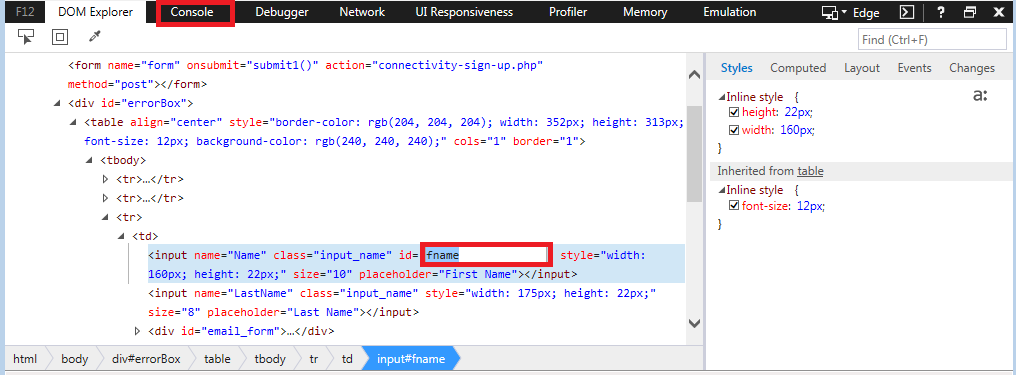
Select the textbox element where you want to assign a value to see the properties, for example, First Name. In our example, the ID of the element is fname.
-
Copy the value and go to the Console tab.
-
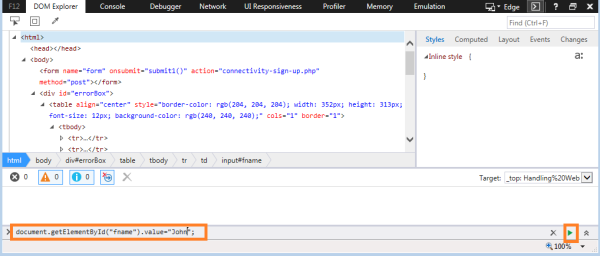
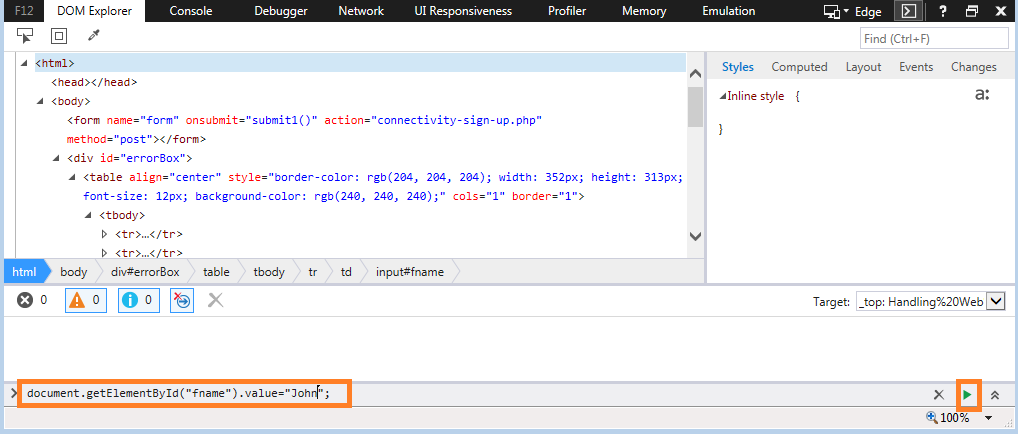
Enter the following method in the Console Input area to assign a value to a textbox using the property id:
document.getElementById("fname").value="John";
-
Click the
 Run script button to execute the command. The field value is updated.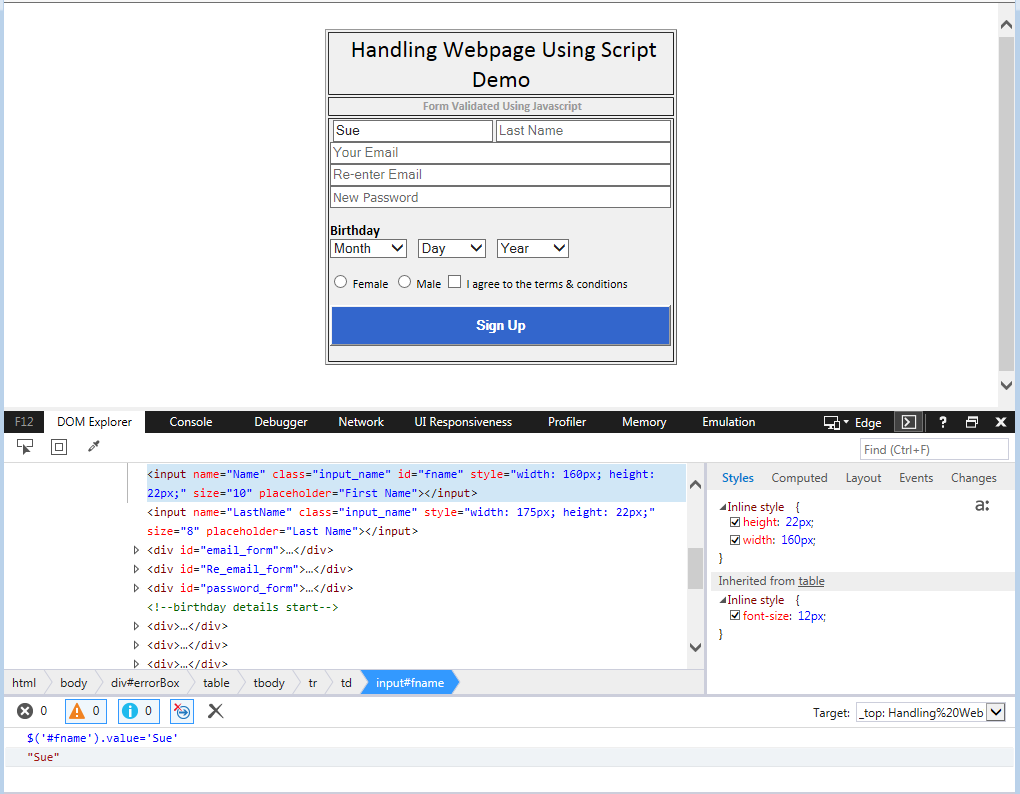

Set Text Box Content using JQuery
Similarly, there are several JQuery methods to access HTML DOM elements.
|
Method |
Description |
|---|---|
|
$('#id'); |
Find an element by element id |
|
$('input[name='value defined in name property'] '); |
Find elements by tag name |
|
$('.Class name'); |
Find elements by class name |
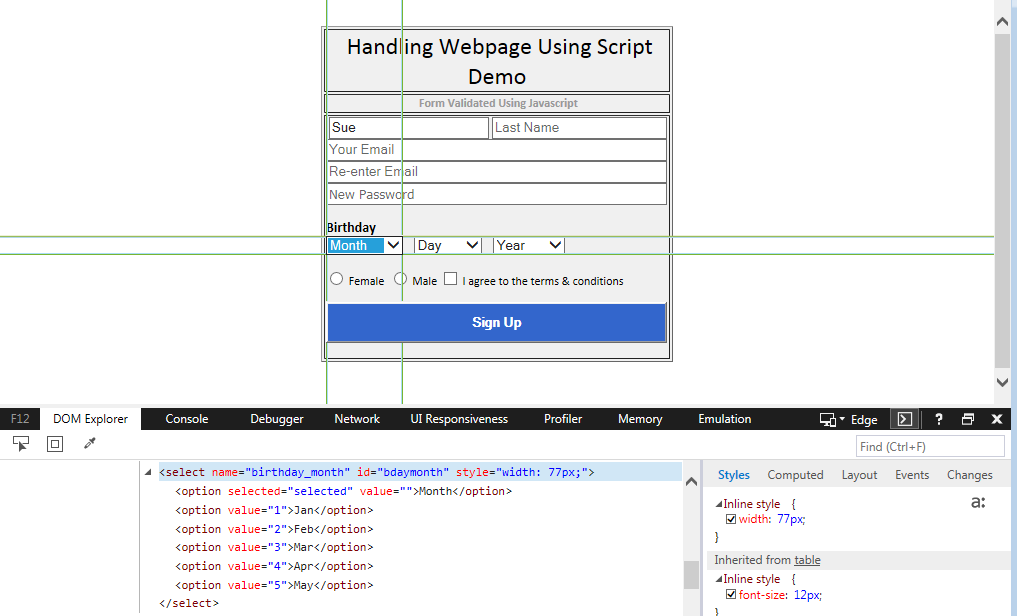
To set the text box content using JQuery:
-
Run $('#fname').value='Sue'
Set Combo Box Content
Use the following JavaScript code to assign a value into a combo box:
var a = document.getElementById("id");
a.value = "Value to assign";
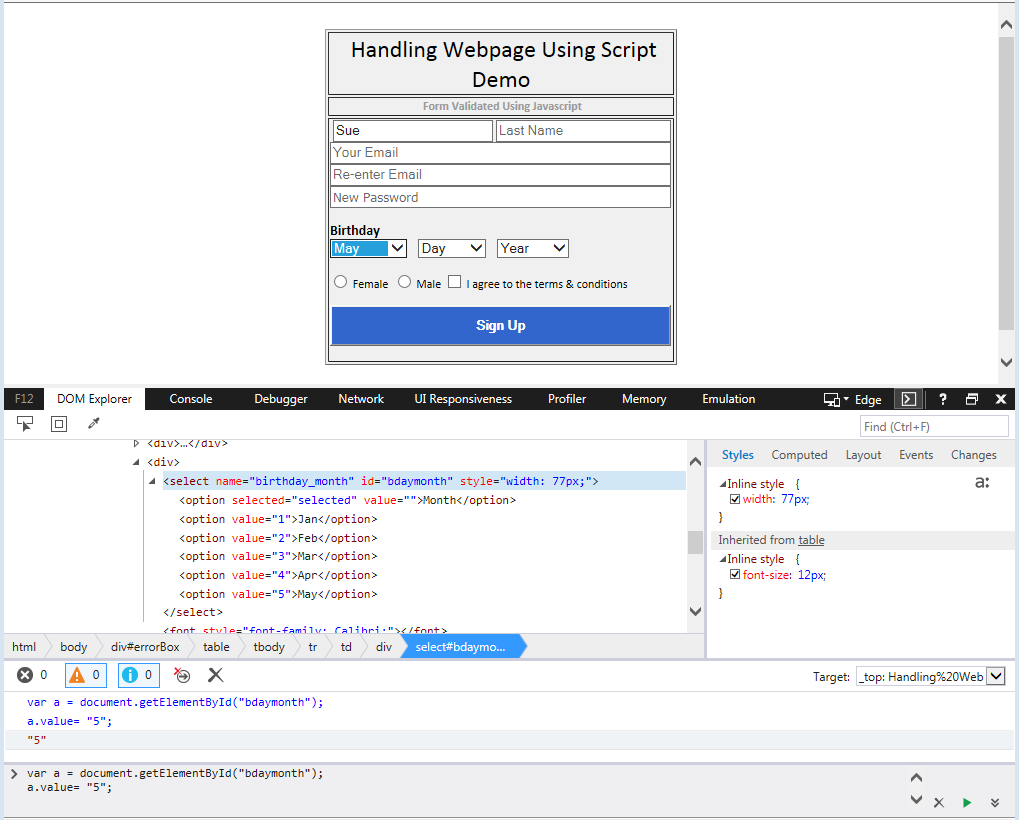
The DOM explorer reveals the following properties while selecting the combo box.
Let’s assign a value, for example, 5 representing May, for the birthday month combo box in our example:
var a = document.getElementById("bdaymonth");
a.value= "5";
Select Radio Button or Check Box
Use the following JavaScript code to select a radio button or check box:
document.getElementById("id of radio/check box").checked="true"
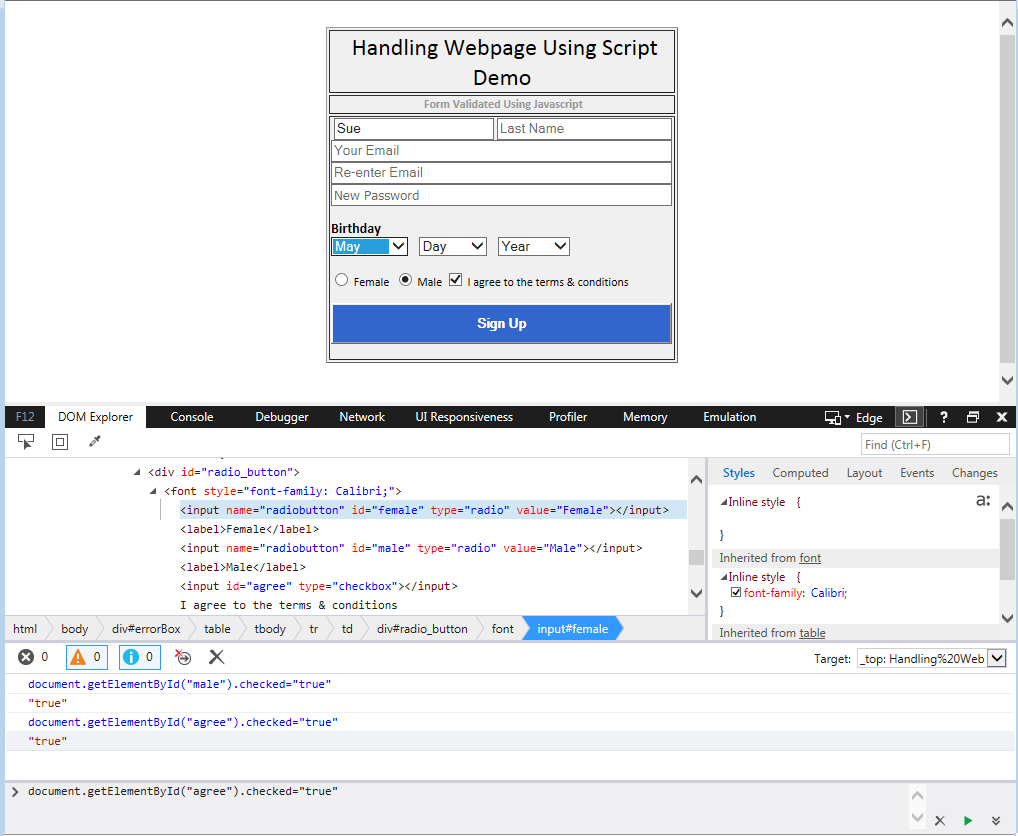
In our example, to select the Male radio button:
document.getElementById("male").checked="true"
The same method can be used to select the checkbox element:
document.getElementById("agree").checked="true"
Click HTML Button
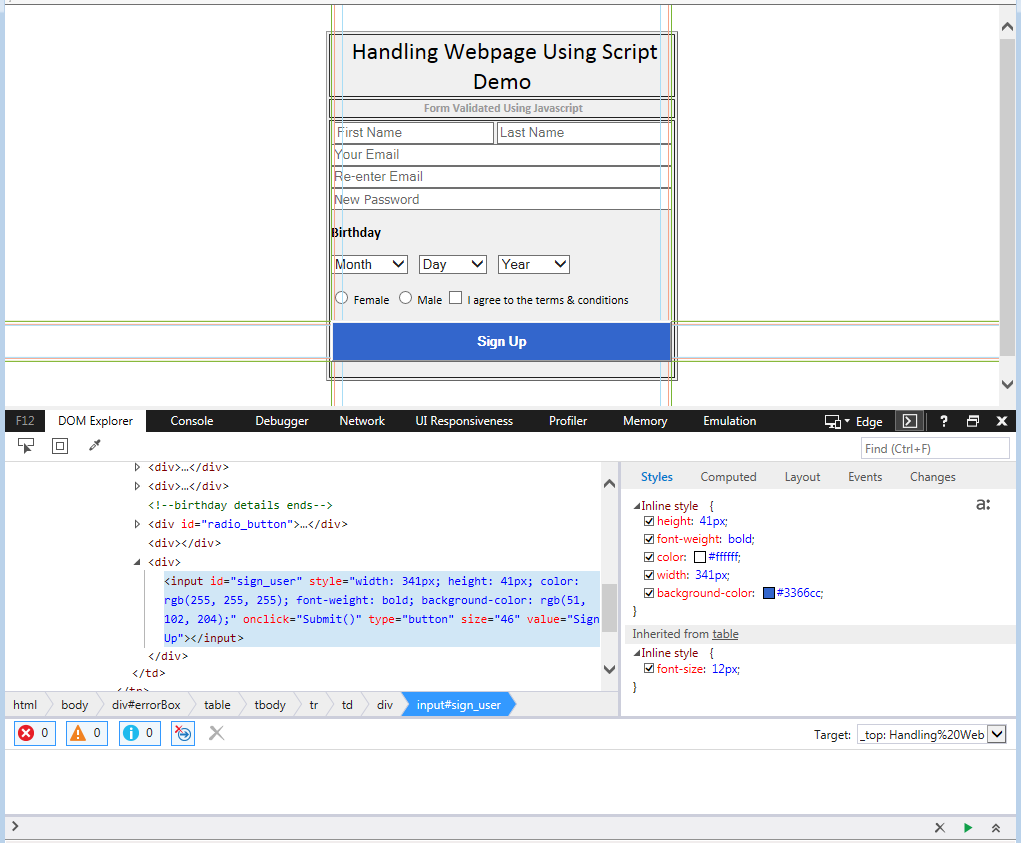
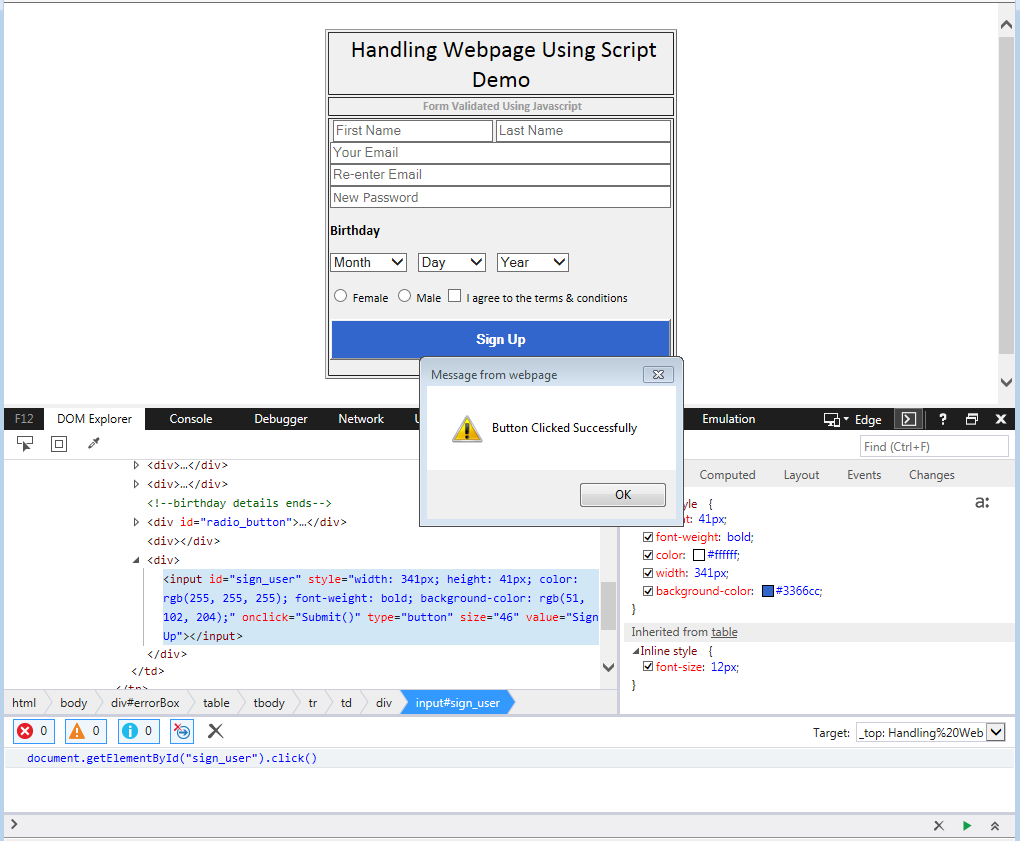
The click() method can be used to simulate a mouse click on HTML buttons. Let’s implement the click() event using our example web page. As we saw in our earlier JavaScript methods, we need to select any HTML element and identity it using one of its properties, for example, ID, Name, Class Name.
-
Select an HTML button using DOM Explorer to identify its properties.
-
Use click() to click on an HTML button. For example:
document.getElementById("sign_user").click()
There are also methods to focus and remove focus from an element.
|
Method |
Description |
|---|---|
|
document.getElementById("ID").click() |
Simulates a mouse click on the element. |
|
document.getElementById("ID").blur() |
Removes keyboard focus from the element. |
|
document.getElementById("ID").focus() |
Focuses on the specified element, if it can be focused pn/ |
Invoke/Fire Event Handler on HTML Elements
We can also invoke the event handlers of certain HTML DOM elements using scripts. It registers a handler to be called whenever the event defined for an HTML element is raised.
For example, use the following JavaScript code to invoke the handler to an HTML button:
document.getElementById("ID").onclick();
Following are example event handlers.
|
Event Handler |
Event that it handles |
|---|---|
|
onBlur |
User has left the focus of the object. For example, they clicked away from a text field that was previously selected. |
|
onChange |
User has changed the object, then attempts to leave that field (i.e. clicks elsewhere). |
|
onClick |
User clicked on the object. |
|
onDblClick |
User clicked twice on the object. |
|
onFocus |
User brought the focus to the object (i.e. clicked on it/tabbed to it) |
|
onKeydown |
A key was pressed over an element. |
|
onKeyup |
A key was released over an element. |
|
onKeypress |
A key was pressed over an element then released. |
|
onLoad |
The object has loaded. |
|
onMousedown |
The cursor moved over the object and mouse/pointing device was pressed down. |
|
onMouseup |
The mouse/pointing device was released after being pressed down. |
|
onMouseover |
The cursor moved over the object (i.e. user hovers the mouse over the object). |
|
onMousemove |
The cursor moved while hovering over an object. |
|
onMouseout |
The cursor moved off the object |
|
onReset |
User has reset a form. |
|
onSelect |
User selected some or all the contents of the object. For example, the user selected some text within a text field. |
|
onSubmit |
User submitted a form. |
|
onUnload |
User left the window (i.e. user closes the browser window). |