


The Real-Time Client enables you to run a project with screen elements in order to view and edit the project's values and processes behind the scenes. The Screen Elements tab in the Monitor window enables you to monitor Real-Time Designer screen elements. All screen elements, including hidden ones, are automatically shown in the Navigation pane of the Monitor window.
In the following example, the screen properties and functions of a Power Builder DataWindow Edit screen element are displayed in the Monitor window.
To view Power Builder DataWindow screen elements during runtime:
| 1. | Run the project and select Monitor. For more information, see Running the Monitor. |
| 2. | Click the Screen Element tab and then select the relevant screen element in the tree on the left. |
The list of screen element properties is shown in the Properties tab on the right:
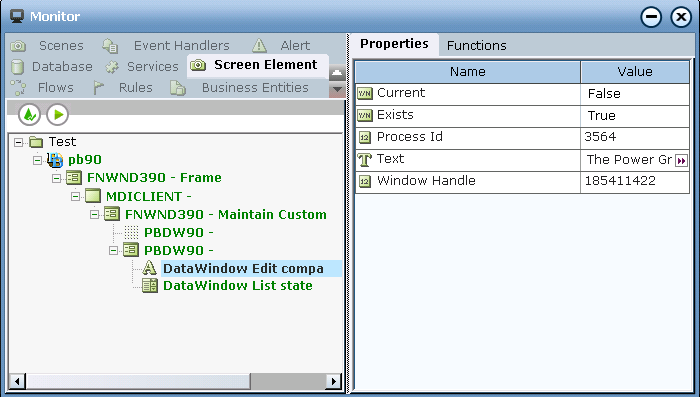
The Monitor displays only properties of simple types (for example, Boolean, DateTime, Decimal, Number, and Text). To view other property types (for example, List type, Screen Element Rectangle type, and other Libraries screen elements types), you must bind them to business entities in the project (see Business Entities for details).
| 3. | Click the Functions tab. |
The functions of the screen element are listed in the Available Functions drop-down list:
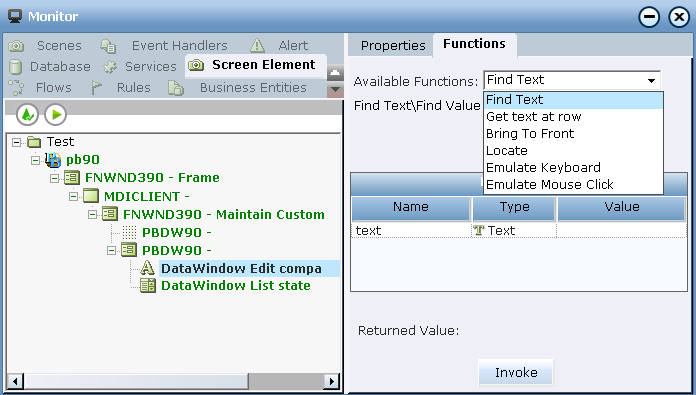
The Monitor window displays only functions of simple return types are shown. The functions of types such List, PO and CtrlPO are not shown. To use functions that are not shown, you need to define them in the Business Entities module (see Business Entitiesfor details).
Locating a Screen Element During Runtime
To locate a screen element in the Power Builder application:
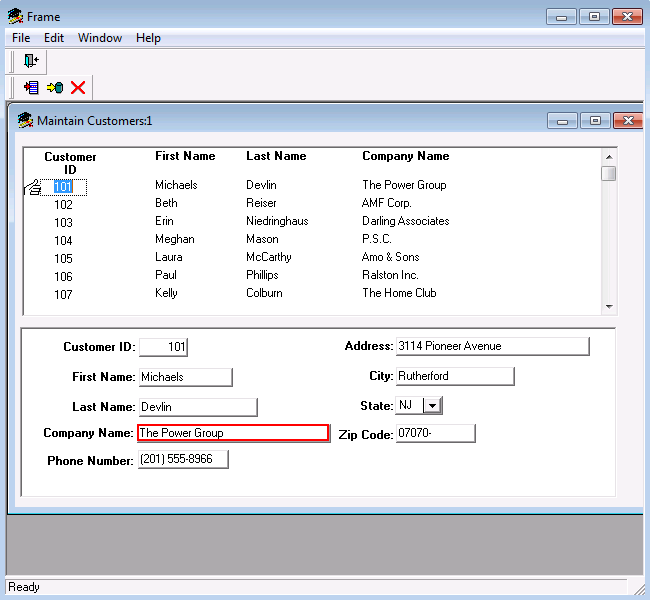
In the Available Functions drop-down list, select the Locate function and then click Invoke.

The Monitor is minimized and the control appears framed in the Power Builder application with a blinking red border:
The other functions of the selected Power Builder DataWindow Edit are listed in the Monitor's Available Functions drop-down list, and include:
Find Text: Find specified text in the DataWindow object’s cell. For this function you will to need to define the value of Text parameter, and then click  .
.
Get text at row: Gets the cell text for the specified row (1 based index). The parameter of the function is Row of the Number type.
Bring to front: Moves the .NET screen element to the top of the stacking order thereby bringing object to the front.
Emulate Keyboard: Emulates the text entered from the keyboard. For this function, you need to specify the value of the Text parameter by defining the text that you want to emulate.
You need to verify that the object is in focus before invoking the Emulate Keyboard function.
Emulate Mouse Click: Emulates a right-click on the DataWindow object.