


Defining a Basic Condition
This section describes how to define basic conditions.
To define a condition:
| 1. | Click Add Condition to add a basic condition template. For example: |
<Select Item…> <Select Operator…> <Select Value…>
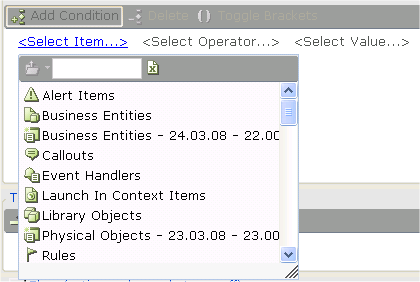
This simple expression enables you to select an item, a value, and an operator with which to compare the item and the value.
| 2. | The <Select Item…> link is automatically selected and a standard Real-Time Designer Assignment Tool drop-down menu is displayed. To re-display it if it closes, click the <Select Item…> link. |
A list of the types of objects that can be selected is displayed in the Real-Time Designer Assignment Tool, as described in Assignment Tool, such as business entities, callouts, alerts and so on.

Examples:
If you select Business Entities, a list of all previously defined business entities is displayed:
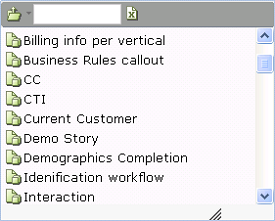
If you select Current Customer, a list of the properties of the Current Customer business entity is displayed:
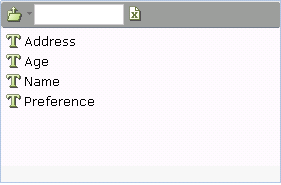
If you select Preferences, the condition appears:

The words Preferences of Current Customer indicate that the Preferences property belongs to the Current Customer business entity. You can click the link to modify the entry.
| 3. | To select an operator, click <Select Operator…>. A drop-down menu of comparison operators is displayed: |
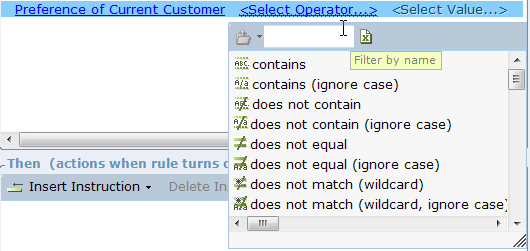
This operator is used to compare the selected item with the value you select in the next step.
For example, the following is shown if you select equals:

| 4. | Click the <Select Value…> link to display a standard Assignment Tool drop-down menu: |

This value is compared to the selected item according to the operator selected in the previous step.
The format of the condition template changes according to the option you select after clicking the <Select Item…> link.
The following table shows the data type conversions that can be performed in the Action Editor or business entity property by invoking an explicit convert <type> to <type> function.
|
Source |
Text |
Integer |
Decimal |
Boolean |
Date-Time |
|
Target |
|||||
|
Text |
Yes |
Yes |
Yes |
Yes |
Yes |
|
Integer |
Yes |
Yes |
Yes |
Yes |
No |
|
Decimal |
Yes |
Yes |
Yes |
Yes |
No |
|
Boolean |
Yes |
Yes |
Yes |
Yes |
No |
|
Date-Time |
Yes |
No |
No |
No |
Yes |
