


Viewing Win32 Screen Element Details
To view the Win32 screen element details:
For details on how to work at the Win32 Process level, see To view Identification details of a Win32 Process:.
| 1. | Select the captured screen element in the Screen Elements tree and click the Identification tab. |
The type of the captured screen element is specified in the Screen Element Type drop-down list.
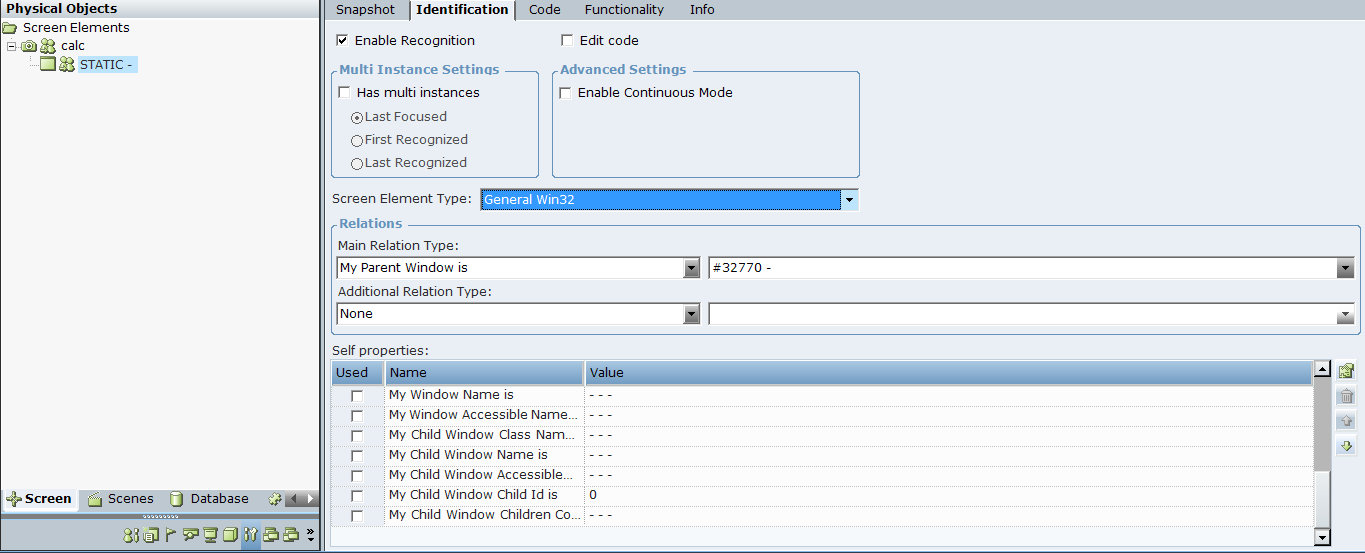
| 2. | Open the Screen Element Type drop-down list to view other Win32 screen elements types. |
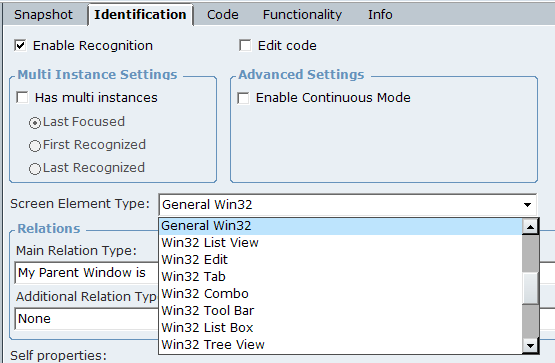
The following elements are available:
General Win32
Win32 List View
Win32 Edit
Win32 Tab
Win32 Combo
Win32 Tool Bar
Win32 List Box
Win32 Tree View
Win32 Flex Grid
Win32 Radio Button
Win32 Check Box
Win32 Button
Win32 Slider
Win32 Form
Win32 Poller
Win32 Status Bar
Real-Time Designer automatically identifies the type of the captured screen element in the Screen Element Type field.
Win32 Poller is a class that identifies a screen element based on its self-properties, where some of these self-properties may change without an event after the screen element has been identified. In such dynamic cases, the screen element type should be manually changed to Win32 Poller. The Poller type functionality includes a Text property that is updated every time the screen element is polled.
| 3. | In the Identification tab, select a main relation type for the Win32 screen element from the Main Relation Type drop-down list. |
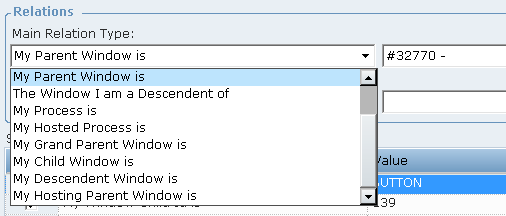
The following main relation types are available:
|
Main Relation Type |
Description |
|---|---|
| The Process I am a Top Window of | A parent Process level, under which the screen element was captured. This relation type is only applicable for defining a relation of a top window in the hierarchy. |
| The Process Top Window I am a Child of | A parent Process level. |
|
The Process I am a Top Window Hosted of |
A process where the top window is hosted. |
| My Parent Window is | The screen element’s parent object located one level above in the hierarchy. |
| The Window I am Descendant of | The screen element’s parent object located at any level above in the hierarchy. |
| My Process is |
The process level, under which the screen element has been captured. This relation type is applicable for any object in the screen element’s hierarchy. |
| My Hosted Process is | The process, under which the screen element has been hosted. |
| My Grand Parent Window is | The grand parent window. |
| My Child Window is | The screen element’s parent object located one level above in the hierarchy. |
| My Descendent Window is | The screen element’s descendent window. |
| My Hosting Parent Window is | The screen element’s parent window. |
| 4. | In the Identification tab, from the Additional Relationship Type drop-down list, select an additional relationship type for the Win32 screen element. The additional relationship type determines the screen element’s position relative to another object in the Win32 application. By default, the value of the Additional Relation Type filed is None. |
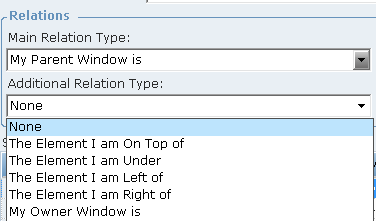
To define the additional relation type, you must have other captured elements. See Additional Relation Type.
| 5. | Select the required self-properties in the Self properties section. The Self properties section lists the self-properties that can be used to uniquely identify the Win32 screen element type. Real-Time Designer automatically selects the properties in the Used column that can optimally identify the screen element. |
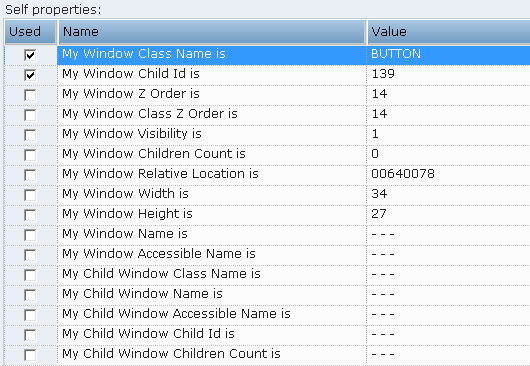
For more information, see Self Properties .
The default order of self properties can be changed for the Win32 Connector in the Real-Time Designer’s System Settings window. See the Win32 Plugin Configuration chapter in the System Administration Guide.
The following self-properties are available:
|
Self-property |
Description |
|---|---|
| My Window Class Name is | The name of the classto which the specified physical object belongs (for example, BUTTON). |
|
My Window Children Count is |
The number of child objects. |
| My Window Visibility is |
Identifies a window based on its visibility. When the window is visible, the physical object is recognized. When the window is hidden, the physical object is destroyed until the window becomes visible again. |
| My Window Relative Location is |
Identifies a window based on the location of its parent window. The format for this property's value is YYYYXXXX, where YYYY indicates the Y offset and XXXX indicates the X offset (including a leading zero) from the parent window. For example, the 00960234 value (see the screenshot above) indicates that the window location has an offset of (0096,0234) from its parent window. |
| My Window Width is | Window width in pixels. |
| My Window Height is | Window height in pixels. |
| My Window Child Id is | The window ID. |
| My Window Z Order is |
The window position in a stack of overlapping windows. A window stack is oriented along an imaginary axis, the z-axis, extending outward from the screen. The window at the top of the z-order overlaps all other windows. The window at the bottom of the z-order is overlapped by all other windows. When an application creates a window, the system puts it at the top of the z-order for windows of the same type. You can change the z-order by activating a different window. The system positions the active window at the top of the z-order for windows of the same type. When a window comes to the top of z-order, so do its child windows. |
| My Window Class Z Order is | The class of the window’s position in a stack of overlapping windows. |
| My Window Name is | A window name where Win32 physical object is hosted. |
| My Window Accessible Name is |
Provides accessibility support. Accessibility support enables you to identify a given screen element and to activate its default action. For example, for a button, the default action is to click the button. This feature is ideal when you have a Win32 application that has a control whose functions you cannot invoke using standard Win32 functions (for example, GUI libraries in which vendors have implemented extensions to Win32 functionality by creating additional buttons). Custom buttons created in this manner may not support a Win32 click function, thus limiting Real-Time Designer's ability to recognize them as buttons. In such cases, you can use accessibility options to generate a click event, whereas otherwise you could not. |
| My Child Window Class Name is | Gets the name of the class, to which the child object belongs. |
| My Child Window Name is | Indicates having a child with specified name. |
| My Child Window Accessible Name is | Indicates having a child with specified accessible name. |
| My Child Window Child Id is | Indicates having a child with this ID. |
| My Child Window Children Count is | Indicates having a child with defined children count. |
| 6. | By default, the Has multi instances option is cleared when you capture a Win32 physical object. You can change the default value. For more information, see Working with the Win32 Connector. |
Viewing Identification Details of a Win32 Process
To view Identification details of a Win32 Process:
| 1. | Select the process level of a captured Win32 screen element in the Screen Elements tree and click the Identification tab. |
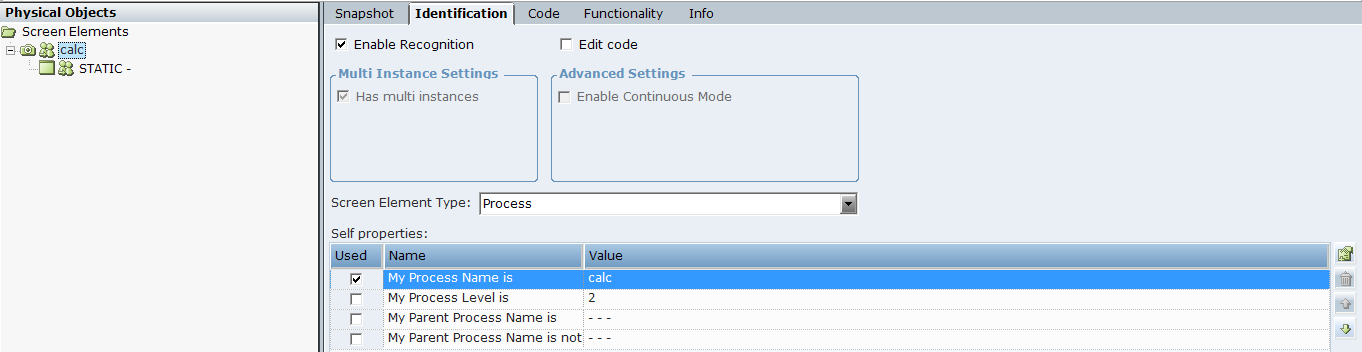
The Relations section is missing for the Win32 Process screen element type in the Identification tab.
The Has multi instance option is selected and disabled by default. This option is not editable for Win32 Process:
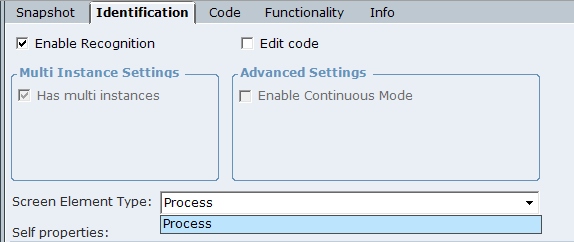
The Screen Element Type drop-down list includes the Process type only, which is automatically detected by Real-Time Designer.
| 2. | Select the required self-properties in the Self properties section. |
The Select properties section provides a list of properties that can be used to uniquely identify the Win32 Process type. See Self Properties ).

The following self-properties are available:
|
Self-property |
Description |
|---|---|
| My Process Name is | The process name of the Win32 application in the process tree. You can use the Process Explorer utility (or the Windows Task Manager) to verify the name of the process. |
| My Process Level is | The level of the process in the process tree. Enables you to handle scenarios where applications have more than one process on different levels. You can use the Process Explorer utility to verify the process level. |
| My Parent Process Name is | The name of the parent process (if such process exists). |
| My Parent Process Name is not | The name of the process, which can’t be a parent process (the process one level higher). |