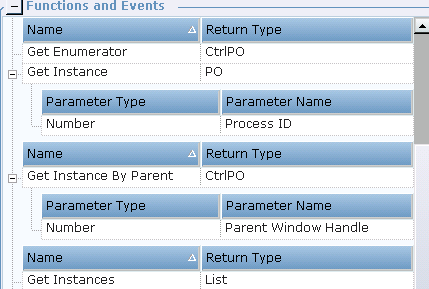
The following complex functions are described herein:
Get Enumerator
Get Instance By Parent
Get Instances
Instances of the CtrlPO type are screen elements that are not process screen elements. Instances of the PO type are screen elements (i.e., CtrlPO + Process).
Complex functions of other Win32 screen elements can be created according to Examples 1. – 4. below.
Get Enumerator
The Get Enumerator function returns an enumerating physical object. The returned type is CtrlPO. You can use it with every screen element whose enumerator is an element (the process is excluded because it doesn’t have an enumerator). Also the top level window is usually excluded, because its enumerator is the process.
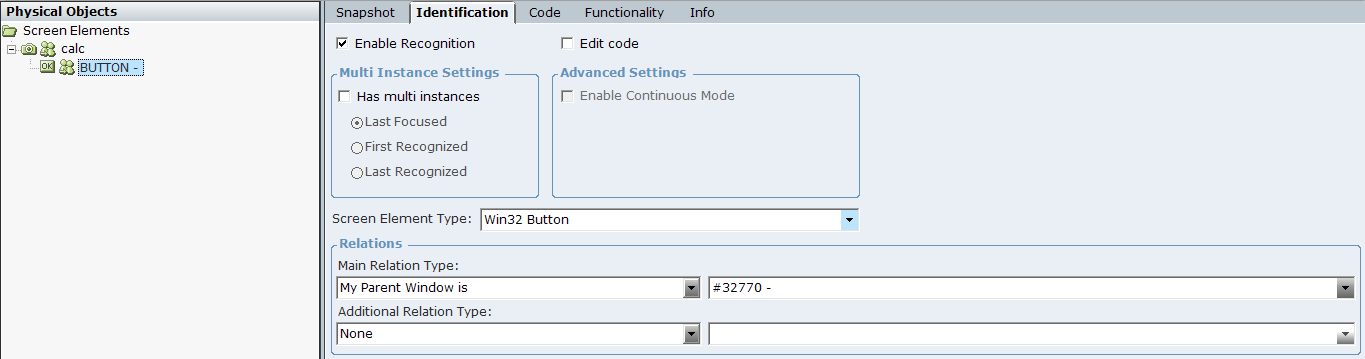
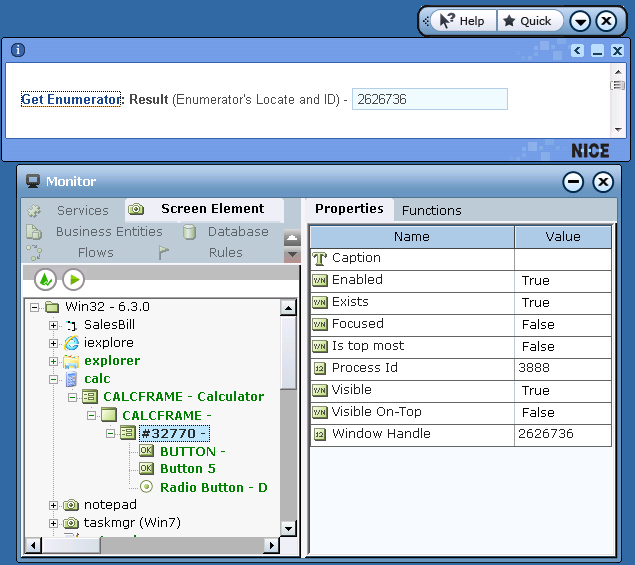
In Screen Elements tree below, the enumerator of the Win32 Button screen element type is #32770.
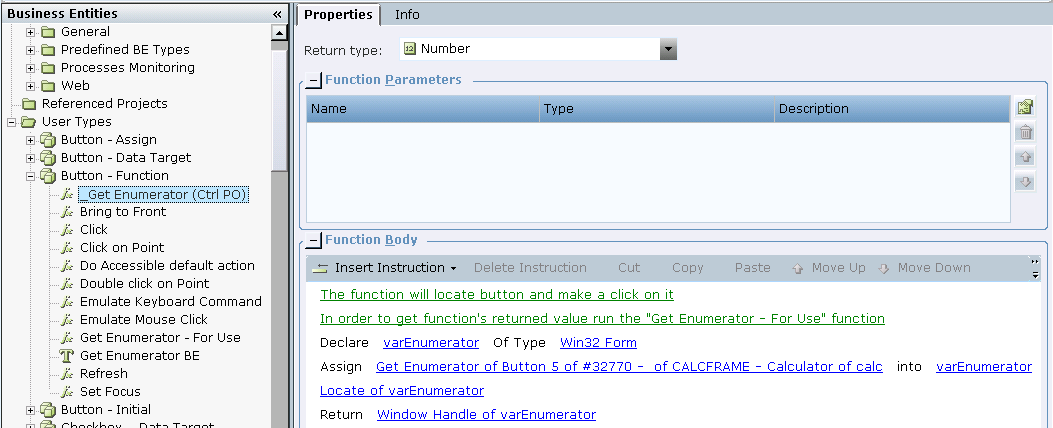
In the example below, a new function’s definition invokes the Get Enumerator function, locates the enumerator in the Win32 application, and returns the Windows Handle value of this enumerator. Because the Get Enumerator function returns an enumerator of the Win32 Form type, you can define the following by creating a new Business Entity Function of the Number type in the Business Entity tab in Real-Time Designer (see Defining a Business Entity Function):
Next, assign the created function to a Business Entity property of the Text type in order to retrieve the Text value, which the _Get Enumerator function (Ctrl PO) function returns in this example.
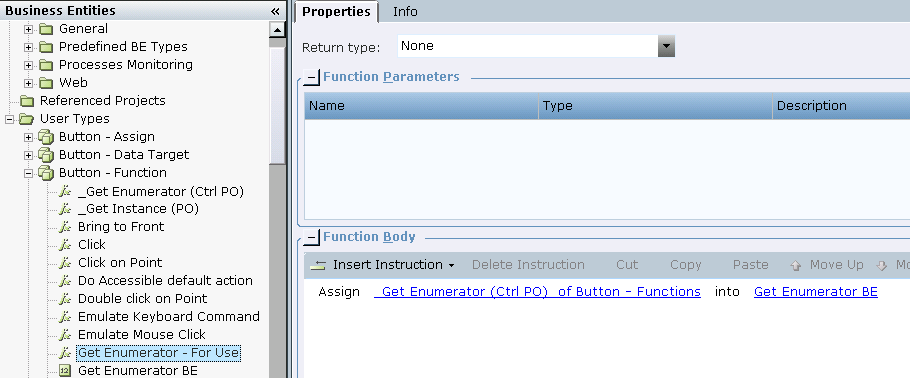
For this purpose, a new function (Get Enumerator - For Use) is created and assigned to the Business Entity property:
Place Get Enumerator - For Use function into a callout.
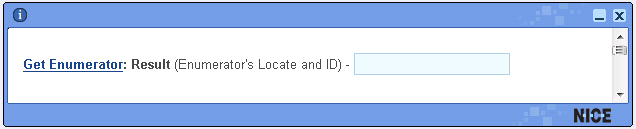
In runtime, invoke the function by clicking the function’s link.
The enumerator of the Win32 element is located and its Window Handle value is shown in the callout:
Get Instance By Parent
This function returns the first recognized physical object of a screen element, whose enumerator (parent) has the given Window Handle value (the input argument to this function is the enumerator’s Window Handle). The return type is PO. You can use it with every CtrlPO screen elements.
In the Screen Elements tree below, the enumerator of the Win32 Button screen element type is #32770.
In the example below, a new function definition invokes the Get Instance By Parent function and then returns the Window Handle value of the Win32 Button screen element, whose enumerator window handle is a input argument.
Knowing that the function returns an instance of the Win32 Button type, you can define the following by creating a new Business Entity Function of the Number type in the Business Entity tab in Real-Time Designer (see Defining a Business Entity Function on how to create a new function ):
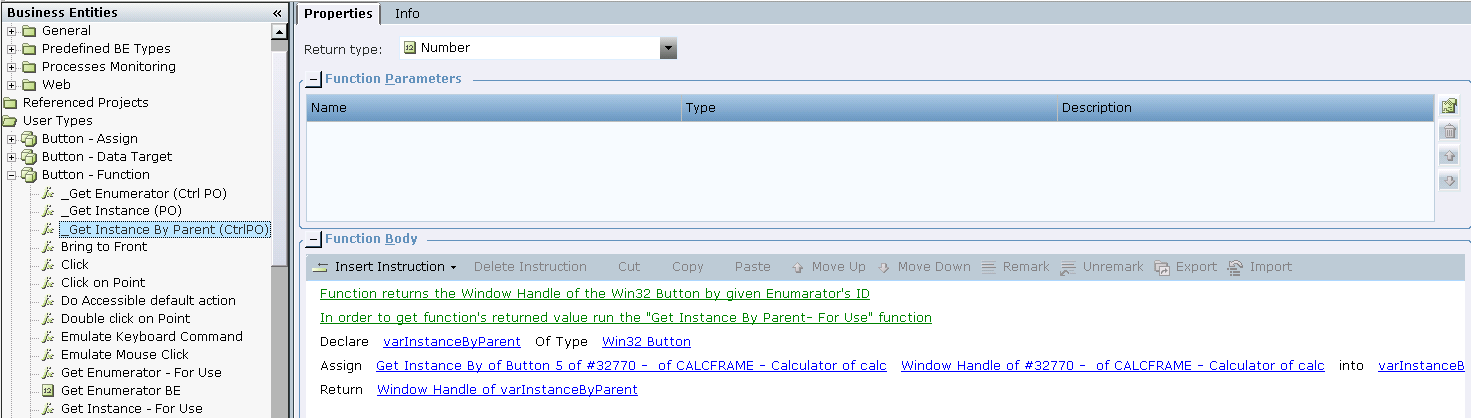
Next, assign the created function to a Business Entity property of the Number type in order to retrieve the Window Handle value, that the _Get Instance By Parent (CtrlPO) function returns in our example.
For this purpose, create a new function (Get Instance By Parent - For use) and assign it to the Business Entity property:
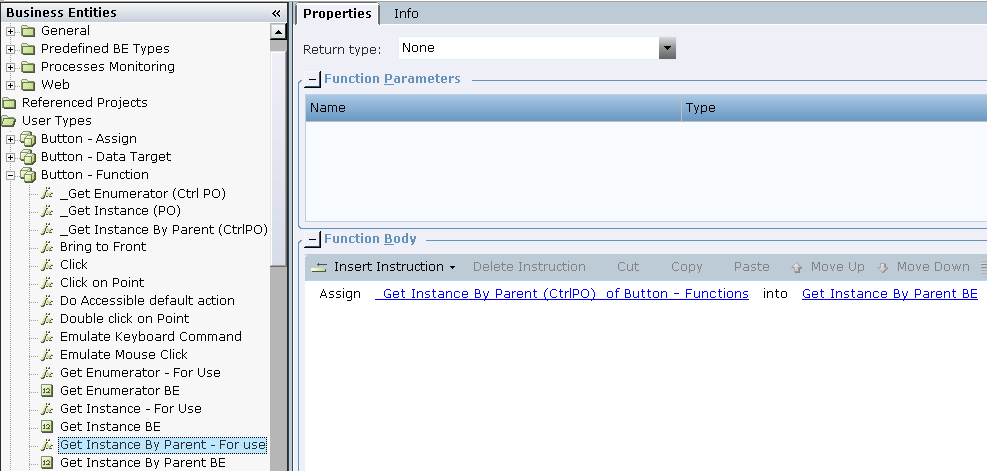
Place the Get Instance By Parent - For use function into a callout.

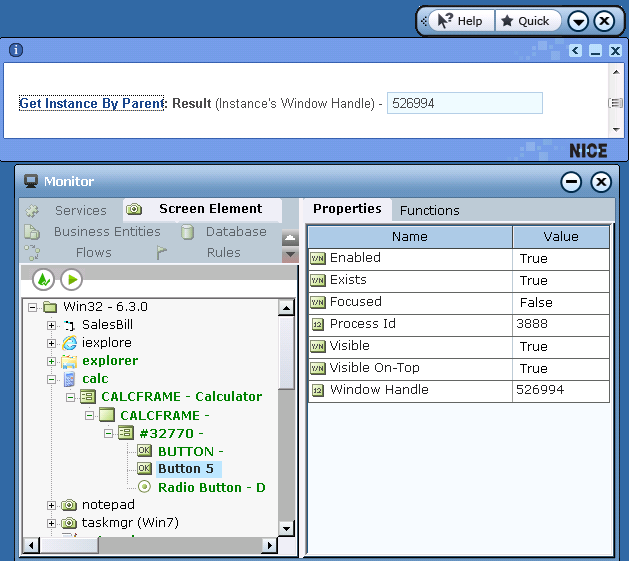
In runtime, invoke the function by clicking the function’s link.
The Window Handle’s value of the Win32 Button’s instance is shown in the callout.
Get Instances
This function returns all recognized physical objects' instances of a screen element (can be a number of multi-instances). You can use this function with every screen element. The return type is List of PO.
In the example below, a new function definition invokes the Get Instances function and returns a list of Window Handles of all recognized instances of the captured Win32 Button (multi-instances).
Knowing that the function returns an instance of the Win32 Button type, you can define the following by creating a new Business Entity function of the List of Number type in the Business Entity tab in Real-Time Designer (see Defining a Business Entity Function on how to create a new function ):

Next, assign the created function to a Business Entity property of the Number type to retrieve the Window Handles value, that the _Get instances (List of PO) function returns in our example.
For this purpose, create an additional new function (Get Instances - For use) and assign it to the Business Entity property:
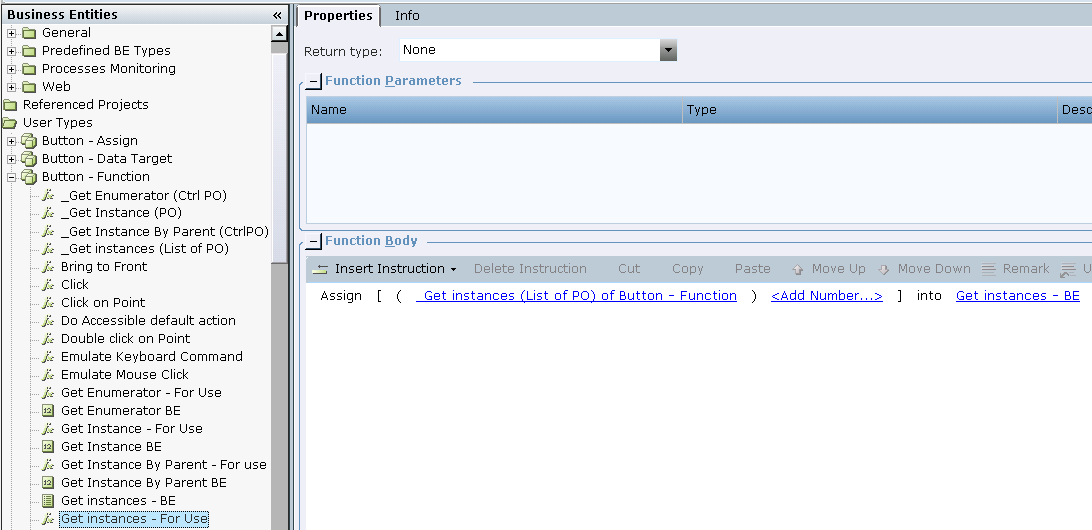
Now you can place the Get instances - For use function into a callout.
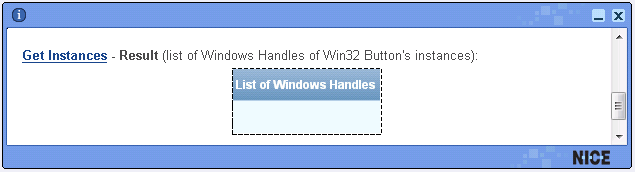
In runtime, you can invoke the function by clicking the function’s link.
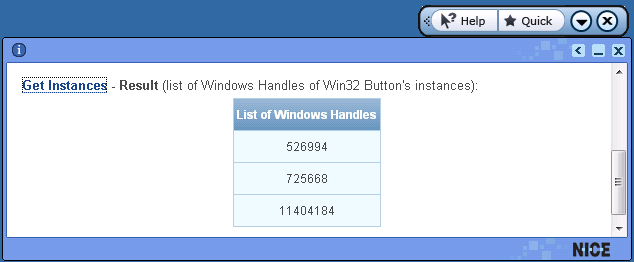
The Window Handle values of the Win32 General’s instances is shown in the callout.